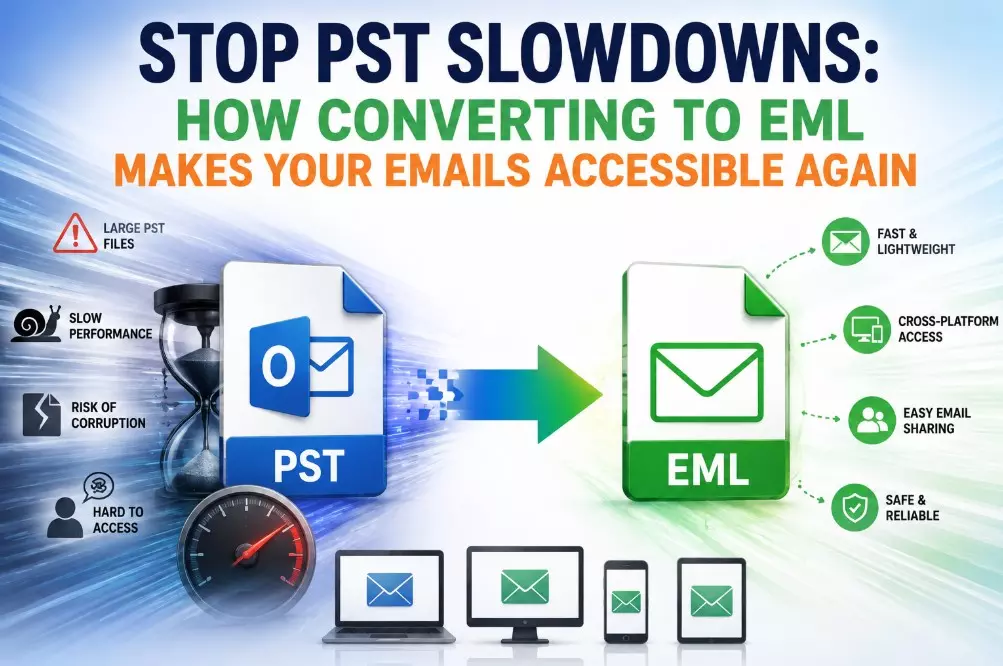
Stop PST Slowdowns: How Converting to EML Makes Your Emails Accessible Again
Microsoft Outlook is one of the most popular email clients used for personal and business communication.
Over time, Outlook accumulates thousands of emails, attachments, contacts and calendar items, typically stored in PST files.
PST files are certainly useful for organising mailbox data, but they can become more difficult to manage as they grow in size and complexity.
Many users have problems including slow Outlook performance, accessibility issues, risk of corruption and sharing archived emails is difficult in the long run.
Below is the practical solution to convert PST files into EML file format. EML files are more accessible, compatible and flexible for long term email management.
This guide will cover the definition of PST and EML Files, the importance of PST to EML conversion, manual conversion methods, their limitations, a professional solution, best practices, suitable use cases, FAQs, etc.
Understanding PST and EML Files
What is a PST File?
PST (Personal Storage Table) is a file format that was created by Microsoft Outlook. It keeps:
- Attachments
- Contacts
- Calendars
- Notes
- Journals
- Tasks
The main use for PST files is to store, backup and archive email.
What is an EML File?
EML is a standard file format for storing individual e-mail messages. What each EML file includes:
- E-mail body
- Information about sender
- Details of the recipient
- Email subject line
- Time and date information
- Attachments
Numerous email clients support EML files, such as:
- Mozilla Thunderbird
- Mail for Windows
- Mail (Apple)
- eM Client
- Outlook Express
Why PST files become difficult to manage over time
As mailbox data continues to grow, PST files become more difficult to manage for various reasons:
Large File Sizes
Over the years of email communication PST files can grow large and slow Outlook down.
Outlook Dependency
PST files are typically only accessible through Outlook, which can limit flexibility when users transition between platforms.
Corruption Risks
Higher corruption and access issues are more common in larger or poorly managed PST files.
Difficult Email Sharing
You may not want to share the entire PST file if you need only a sub-set of emails.
Migration Problems
Moving mailbox data to other email platforms often requires additional conversion steps.
Read: Convert IBM Notes Files with Multiple Export Options
Why PST to EML Conversion is Necessary?
Converting PST files to EML has many advantages:
- Better email accessibility
- Enhanced cross-platform compatibility
- Email sharing improved
- Email archiving made easy
- Improved formatting of individual messages
- Reduced reliance on Microsoft Outlook
- Improved long term preservation of email records
For organisations with large email archives, EML provides a more flexible storage.\
Manual Ways to Change PST Files to EML
There are a number of manual ways to convert PST emails to EML format.
Method 1: Moving Emails by Dragging and Dropping
Steps
- Open Microsoft Outlook.
- Choose the email you want.
- Drop the e-mail on the desktop.
- Open it with a compatible email client and save or convert to EML.
Advantages
- Free method
- No 3rd party software required
- Great for a couple of emails
Drawbacks
- Consumes a lot of time
- Not feasible for bulk conversion
- Missing email
- Scalability issues
Method 2: Forward E-mail to an EML-compatible Client
Steps
- Open Outlook.
- Choose emails to export.
- Send emails to another email account.
- Open them in an email client that supports EML.
- Save individual e-mails as EML-files.
Advantages
- Easy for small tasks
- No extra software required
Drawbacks
- Very slow process
- Needs more than one account
- Attachments may need to be verified
- Not suitable for large mailboxes
Tool-Based Solution
Automated software is a more practical solution for users and organisations working with large PST files.
GainTools PST to EML Converter is an advanced app to convert Outlook PST file to EML file format without any change in original structure & information of emails.
Step-by-Step PST to EML Conversion
Step 1: Install Software—Download and install the application on a Windows system.
Step 2: Import PST Files—Select the PST file that needs to be converted and browse it.
Step 3: View the Mail Data—Review folders and emails pre-conversion.
Step 4: Choose EML as Output Format—Select EML for your export format.
Step 5: Select Destination Folder—Select the location to save converted files.
Step 6: Begin Conversion—Begin the conversion process and wait until it is finished.
Benefits of PST to EML Converter Tool
User-friendly design: Built with an intuitive interface so that technical and non-technical users can perform conversions without a steep learning curve.
Fast Conversion Speed: Optimised algorithms can convert large mailboxes in a short period of time, saving precious time in tight migration schedules.
Mass Email Conversion: Allows batch processing to convert thousands of emails and entire archive folders at one time.
Keeps email style: Fonts, colours, HTML layouts and text alignment are preserved so messages look just like the originals.
Maintains the folder structure of your mailbox: Keeps the original folder hierarchy (inboxes, sent items, custom folders) intact during the export process.
Works with large PST files: Handles and converts large or archived PST files without freezing or crashing.
Metadata preserved: It keeps important email headers like sender and recipient info, time stamps and subjects.
Facilitates email migration projects: Eases transition to other email clients such as Thunderbird, Apple Mail or web-based solutions.
Why Tool-based method is better than manual method?
Batch Processing: Converts thousands of emails at a time.
Saves time: Saves hours of manual labour.
More Accurate: Keeps email properties and folder structure.
Preservation of Metadata: Keeps details of sender, receiver information, headings, date/time stamps and enclosures.
Fewer Mistakes: Automatic processing reduces the number of accidental omissions.
Scalability: Handles PST archive of any size efficiently, small or large.
Pro Tips for Safer PST to EML Conversion
Make a Backup: Always keep a copy of the original PST file.
Check PST File Integrity: Check source file for corruption before conversion.
Arrange Mailbox Data: Delete emails you don’t need to reduce your email load.
Check Output Files: Sample of EML files converted, post-conversion.
Maintain Adequate Storage Space: Make sure you have enough disc space for the data you export.
Keep Software Current: For better performance, please use the most recent version of your conversion tool.
Who Can Benefit from PST to EML Conversion?
PST to EML is useful for:
- Home users archiving Outlook email
- Small businesses migrating email systems to other platforms
- IT administrators involved in mailbox migrations
- Records held by compliance teams
- Legal professionals preserving communications
- Organizations migrating from Outlook
- Users migrating to Thunderbird and other mail clients
FAQs
Why should you convert PST to EML?
The primary purpose is to enhance email compatibility and accessibility across various email platforms.
How to open EML files without Outlook?
Yes. EML files are supported by many email clients and can usually be opened without Outlook.
Will attachments be preserved during PST to EML conversion?
Most professional conversion methods maintain email attachments during the export.
Is PST to EML conversion a manual process for large mailboxes?
No. Manual methods are not practical for large-scale conversions.
Are EML files suitable for long-term email archiving?
Yes. EML files are commonly used for records and archiving purposes.
Is metadata preserved during conversion?
Yes. Typically the sender information, recipients, timestamps and subjects are kept.
Do I need to have Outlook installed to open EML files?
No, there are plenty of email clients that can open EML files without Outlook.
Who benefits the most in PST to EML conversion?
Organisations, IT administrators, legal professionals, compliance teams and individual Outlook users can all benefit.
Conclusion
As Outlook mailbox sizes grow, PST files become more and more difficult to work with due to size limitations, accessibility issues, sharing limitations and migration difficulties.
Converting PST files to EML format can resolve these problems. Emails can be portable, compatible and accessible on different platforms.
Manual methods may work for a couple of emails, but they are generally not effective for large projects. GainTools PST to EML Converter is the most reliable way to perform bulk migration and keep emails intact, providing fast access to
Outlook data in EML format for seamless conversion. PST to EML conversion is an effective and future-proof solution for enhanced email accessibility and long-term email management.