Why a Free PST Splitter Is Useful for Large Outlook Data Files
Microsoft Outlook is widely used to manage email communication, attachments, contacts, calendars, tasks, and other mailbox information. As users continue working with Outlook for years, locally stored data files can grow considerably.
A large PST file may contain thousands of messages and attachments, making the data more cumbersome to organize, transfer, archive, or back up.
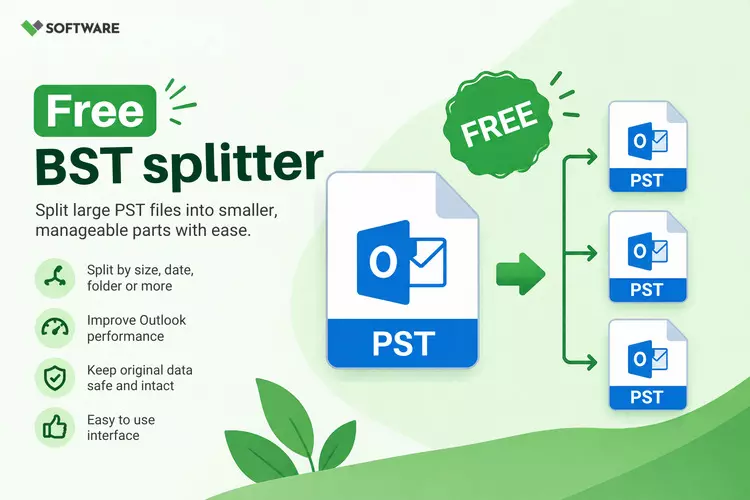
One practical approach is to divide a large PST into several smaller files. A Free PST Splitter can help users evaluate this approach and, depending on the software's limitations, split Outlook data according to criteria such as size, date, folder, or year.
A dedicated PST Splitter tool can also reduce the repetitive work associated with manually reorganizing large quantities of mailbox data.
This article explains why PST splitting can be useful, how PST Splitter Software works, and what users should consider before selecting a solution.
What Is a PST File in Outlook?
PST stands for Personal Storage Table. It is an Outlook data file format that can store mailbox information locally. Depending on the Outlook configuration, a PST may contain emails, attachments, contacts, calendar entries, tasks, notes, and other supported items.
PST files often become larger over time because users continuously receive and retain emails. Attachments such as documents, presentations, images, and spreadsheets can accelerate this growth.
Although modern PST files can support substantial amounts of data, maintaining one very large file may not always be the most convenient approach for organization and archival management.
What Is a Free PST Splitter?
A Free PST Splitter is an application or a free/trial edition of software designed to divide a PST file into smaller PST files.
The available splitting options vary between products. Some utilities may allow users to divide PST files according to a specified size, while others provide date-, year-, or folder-based options.
For example, a user with years of archived Outlook data might divide it into files such as:
- Outlook-Archive-2023.pst
- Outlook-Archive-2024.pst
- Outlook-Archive-2025.pst
- Outlook-Archive-2026.pst
This can provide a more structured approach to storing and identifying historical mailbox information.
However, users should check what "free" means for a particular product. Some free editions have limits on PST size, number of processed items, or available splitting features.
Why Split Large Outlook PST Files?
Splitting a PST is not necessary for every Outlook user. However, it can provide several practical benefits when a data file contains a substantial amount of historical information.
1. Better Outlook Data Organization
A PST containing many years of emails can become difficult to manage from an archival perspective. Separating mailbox data into multiple PST files provides an opportunity to organize information according to logical criteria.
For example, users can create separate files for individual years, departments, clients, or projects.
A PST Splitter tool that supports different splitting criteria can automate much of this organizational work.
2. Easier Backup Management
Backing up a very large PST file can be inconvenient, particularly when historical mailbox data rarely changes.
After dividing archived information into smaller files, users can maintain separate backup copies according to their data-management requirements.
For instance, an older archive PST may remain unchanged, while a current data file continues to receive new information. This distinction can make a broader backup strategy easier to organize.
Splitting, however, should not be considered a replacement for backup. Users should still maintain independent copies of important Outlook data.
3. Simplified File Transfer
Large files can be inconvenient to move between storage devices or computers. Smaller PST files may be easier to copy and organize, particularly when only a portion of the historical mailbox needs to be transferred.
For example, instead of transferring one large archive containing several years of emails, a user could transfer only the PST associated with the required year.
A Free PST Splitter can therefore be useful when users want greater control over how their Outlook archives are divided.
4. Separate Old and Current Outlook Data
Not every email needs to remain within the same active data file.
Older mailbox information can be separated from more recent content and stored in dedicated archive PST files. This allows users to maintain a clearer distinction between current and historical information.
Year-based splitting can be particularly useful in this scenario. Rather than manually selecting thousands of older messages, compatible PST Splitter Software may automate the process according to available date-based options.
Read: Direct Method to Convert MBOX to PST Without Outlook Installation
5. Flexible Splitting Options
A major advantage of specialized software is the ability to choose how the PST should be divided.
Depending on the application, splitting options may include:
- Split by size: The original PST is divided according to a defined output size.
- Split by date: Messages are separated based on specified date criteria.
- Split by year: Outlook data is organized into different files for different years.
- Split by folder: Selected mailbox folders can be exported into separate PST files.
These options allow users to select an approach based on their actual file-management objective.
How Does a PST Splitter Tool Work?
- The exact procedure varies by product, but a typical PST Splitter tool follows a straightforward workflow.
- First, the user selects the source PST file. The application scans or loads the available mailbox information and presents the splitting options it supports.
- The user then selects a criterion such as size, folder, date, or year and specifies a destination for the output.
- The software processes the source data and generates smaller PST files according to the selected settings.
- After processing is complete, users should verify the output before making any changes to the original file.
Manual Splitting vs. PST Splitter Software
Outlook users can manually create additional PST files and move selected folders or emails into them. This approach can work well when the mailbox is relatively small or when only a limited amount of information needs to be reorganized.
The disadvantage is the amount of manual effort involved. Moving thousands of emails into different PST files can become repetitive and time-consuming.
PST Splitter Software can provide a more automated alternative, particularly when splitting needs to be performed according to consistent criteria.
For example, dividing a large archive by year or predefined size can be significantly easier when the software performs the classification and processing automatically.
What to Check in a Free PST Splitter
Users should carefully evaluate software before processing important Outlook information.
Start by checking the splitting criteria. If your objective is to create files of particular sizes, verify that size-based splitting is available. Similarly, users who want annual archives should confirm date- or year-based functionality.
Other useful considerations include folder hierarchy preservation, attachment handling, support for large PST files, destination selection, compatibility with the user's Windows and Outlook environment, and a clear interface.
The limitations of the free version should also be reviewed. A Free PST Splitter may be completely free, or it may be a demonstration edition of a commercial product.
Understanding these restrictions beforehand prevents unexpected limitations during processing.
Data Integrity During PST Splitting
Data integrity is an important consideration whenever Outlook data is reorganized.
A suitable PST Splitter tool should preserve supported mailbox information while creating smaller output files. Users should verify emails, attachments, folder organization, dates, sender and recipient information, and other relevant properties after splitting.
For business-critical information, testing the software with a copy of the original PST is preferable to experimenting with the only available file.
Best Practices Before Splitting a PST File
Always create an independent backup of the source PST before beginning. Keep this backup unchanged until you have thoroughly verified the output files.
Users should also ensure sufficient disk space is available because the splitting process may temporarily require storage for both the source PST and newly created files.
After splitting, open or inspect the resulting PST files in the intended Outlook environment. Check several folders and messages, including emails with attachments, before considering the process complete.
Avoid deleting the original PST immediately after splitting. Retaining it until you fully validate the output provides an additional layer of protection.
Benefits for Individual and Business Users
Individual users can use PST splitting to organize years of personal or professional Outlook correspondence into more manageable archives.
For businesses, the benefits may extend to structured email archiving and easier management of historical mailbox data. IT administrators handling multiple PST files may also benefit from automated splitting rather than manually reorganizing every mailbox.
The practical value ultimately depends on the size of the data, the required output structure, and the features provided by the selected software.
Conclusion
Large Outlook PST files can become inconvenient to organize, archive, transfer, and manage. Dividing historical data into smaller files provides users with a more structured way to maintain their Outlook information.
A Free PST Splitter can be useful for evaluating PST splitting and handling basic requirements, while a feature-rich PST Splitter tool may provide options such as size-, date-, year-, and folder-based splitting.
For larger or recurring requirements, dedicated PST Splitter Software can reduce manual effort and provide a more systematic workflow.
Before using any solution, users should back up their original PST, review the software's limitations, select appropriate splitting criteria, and carefully verify the generated files.
These precautions can help users organize large Outlook data files while maintaining access to important mailbox information.