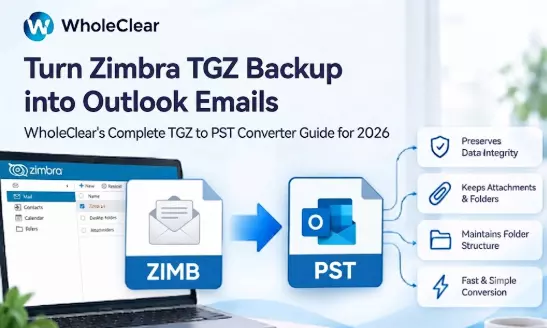
How Do You Turn a Zimbra TGZ Backup Into Outlook Emails? WholeClear TGZ to PST Converter Guide
You have a TGZ file from Zimbra sitting in a folder. Maybe an admin exported it before an account was closed, or you saved a mailbox backup before changing jobs. Now you want to read those emails in Outlook, and Outlook simply won't open the file.
That is a common spot to land in, and it is fixable. This guide covers what a TGZ file actually is, why the conversion is needed, and how WholeClear TGZ to PST Converter turns Zimbra mailboxes into PST files that Outlook understands.
Stuck With a Zimbra TGZ Backup? Here's What It Actually Is
A TGZ file is a . compressed archive Zimbra creates one when you export a mailbox. Inside, your emails and attachments are crammed in among the folder structure of the account.
It is compact and easy to move around which makes it a good backup. Thing is it's built to be read back by Zimbra. Other email programs don’t have a clue what to do with it.
Why Outlook Can't Open a TGZ File Directly
Outlook data is saved in PST files. It can't read a Zimbra archive so double-clicking a TGZ file gets you nowhere. You have to convert your mails first.
Most people end up here for one of a few reasons:
• The company is switching from Zimbra to Outlook or Microsoft 365
• Leave a former employee’s mailbox accessible
• To search an old backup for a specific message
• Emails should be in a familiar format to satisfy an audit or legal request
Convert Zimbra TGZ to PST in Four Simple Moves
The process is quick and does not require any technical training to complete.
1. Download the application to your computer and launch it.
2. Load your Zimbra TGZ files on Browse button. The tool displays the entire list of files you have added, so you can choose the ones you really want.
3. Pick a destination folder where the PST files will be saved.
4. Click Convert Now. When it finishes, import the PST file into Outlook.
While exporting the tool creates a new Unicode PST so nothing is mixed up in an existing data file.
Read: Direct Method to Convert MBOX to PST Without Outlook Installation
Do You Need Zimbra or Outlook Installed?
No, and it surprises many people. The conversion runs without Zimbra and without outlook in the same machine .
This is very handy when the old Zimbra server is down, or when you are working on a machine where outlook has never been installed. Later you only need Outlook, when you want to open the finished PST and read the mail.
What Actually Comes Across in the PST
Nobody wants to convert a mailbox and have half of it gone. What carries over is this:
• Email and email attachments. All types of attachments are exported with their messages, unmodified.
• Email address will remain with each message: subject, sender, recipients, cc, bcc, date and time.
• Formatting. Hyperlinks, colors, font sizes and inline images are kept so messages look like they did in Zimbra.
• Folder hierarchy. The original hierarchy in the PST is ordered accordingly.
Once converted, click through a handful of folders for a few minutes. If the names and nesting are what you remember you are in good shape.
Working With Big or Many TGZ Backups
Attachments pile up year after year and mailbox archives grow at a rapid pace. The software does not impose any limit on the size of a TGZ file. With a licensed edition, you can also convert unlimited TGZ files.
There are a few habits that can make big jobs less stressful:
• Ensure there is ample free space on the drive where the PST files will be stored
• Batch conversion instead of loading all at once
• Open one full PST before starting the next batch.
Which Computer Can You Run It On?
It’s not just Windows. The software is compatible with Windows 10 and Windows 11, macOS 12 and later, and Linux x64. This is useful for Zimbra users because many of them work on Linux or Mac, not on a Windows desktop.
Try a Small Batch Before the Full Job
There is a free demo that works exactly like the licensed version, with attachments. Only difference is it converts the first 25 items .
Try out those 25 things as a test run. Choose a small TGZ file, convert it and then open the output in Outlook. Check that :
• Folder names look correct
• Attachments are opened by mistake
• Dates and senders are right
• Inline images still present in message body
If all looks good, you can move on to the full mailbox with more confidence.
Importing the PST into Outlook
After the conversion process is done, you can import the PST to Outlook 2019, 2016, 2013, 2010 and other editions.
Access the Import/Export tool in Outlook by selecting File, followed by Open & Export, and then Import/Export. Click Import from Another Program or File, and then click Outlook Data File (.pst). Click Browse, and then select the PST you just created.
Your Zimbra folders will now appear in the navigation pane, ready to be read, searched, or moved into your main mailbox.
A Quick Word Before You Go
Moving mail out of Zimbra doesn't need to be a long project. Know what your TGZ file contains, run a small test, check the results, and then convert the rest.
If you want a converter that works without Zimbra or Outlook on the machine, WholeClear TGZ to PST Converter is worth a look, and the free version lets you judge the results yourself first. Should you get stuck along the way, the support team can be reached by email, live chat, and Skype.