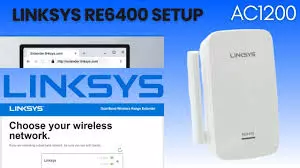
Troubleshooting and Setup Tips for Linksys RE6400
If you have ever tried to installWi-Fi Extender in a thick wall house, you know that it can be challenging. While the Linksys RE6400 setup process appears simple, it often requires more effort than expected. In this guide we will look at the practical
troubleshooting and setup tips that make it more effective.
Step 1: Dealing with Power Issues
The first thing is to plug it in. Don’tjust plug it in anywhere. You need an outlet that is close to your router for the Linksys RE6400 setup. I usually start within the same room. At this time yourequire strong signals. When the light turns amber or blinking green it is ready to setup. If it is not working, try another outlet.
Step 2:Decide on Setup Mode
You have got two ways: WPS or manualsetup through a browser.
WPS Method – This is quick method but not always reliable. Press the WPS button on your router, then on the RE6400.Wait for the light to turn solid green. If it fails then go for manual.
Manual Method – Connect your laptop/phone to the RE6400’s temporary Wi-Fi network which is Linksys Extender Setup. Open a browser and type http://extender.linksys.com. In the address bar. Follow the prompts.
Tip: If the setup page doesn’t load,verify if your device is actually connected to the extender’s network.
Step 3:Placement Is Everything
This is where most people mess it up. After the initial Linksys RE6400 setup, unplug it and move ithalfway between your router and the dead zone. If it is too far from the router,it will just extend a bad signal.
Tip: Test the signal speed withphone and move around. Anything below -70 dBm (use a free Wi-Fi analyzer app) means it is too far.
Step 4:Firmware Updates
Linksys firmware updates solve mostof the problems. After setting it up, log back into the extender admin page (http://extender.linksys.com),check for updates and install them.
Common Problems and How I Fix Them
1. Extender Not Showing in Wi-Fi List
Sometimes, after Linksys RE6400 setup,the network is not shown in the WiFi list. This is because the extender failed to save your router’s SSID properly. Reset it by holding the reset button for about10 seconds until the light flashes and start over.
2. Solid Orange Light
This orange light reflects thatthere poor connection to your router. Make sure to move it closer.
3. Signal Keeps Dropping
Check for interference like cordlessphones, microwaves and baby monitors. Also, make sure your router’s channel is not overloaded. Change the router channel in its settings.
4. WPS Refuses to Work
If this method does not work thenswitch to manual setup which is more stable and reliable.
Resetting When All Else Fails
If you are stuck even after manyunsuccessful efforts, the time has come to reset. Use a paperclip to press and capture the reset button until the indicator starts blinking. Once the light starts to blink, release the button to reset the device and start fresh.
Additional Extra Tips
- Name it smartly – If you keep the same network name (SSID) as your main Wi-Fi, devices roam automatically. But if you want to know when you are connected to the extender, give it a slightly different name, like “Home-WiFi-EXT.”
- Test speed –It is better to test signal speed to check if it is working properly or not.
- Keep it cool – These little boxes get overheated. Do not place it behind closed cabinet.
- Reboot once in a while – A quick unplug-Replug can solve random glitches.
Final Thoughts
The RE6400 is one of those gadgetswhich do the job if you set it up right way. Take your time during setup, test after every step and don’t hesitate to do reset and start over.