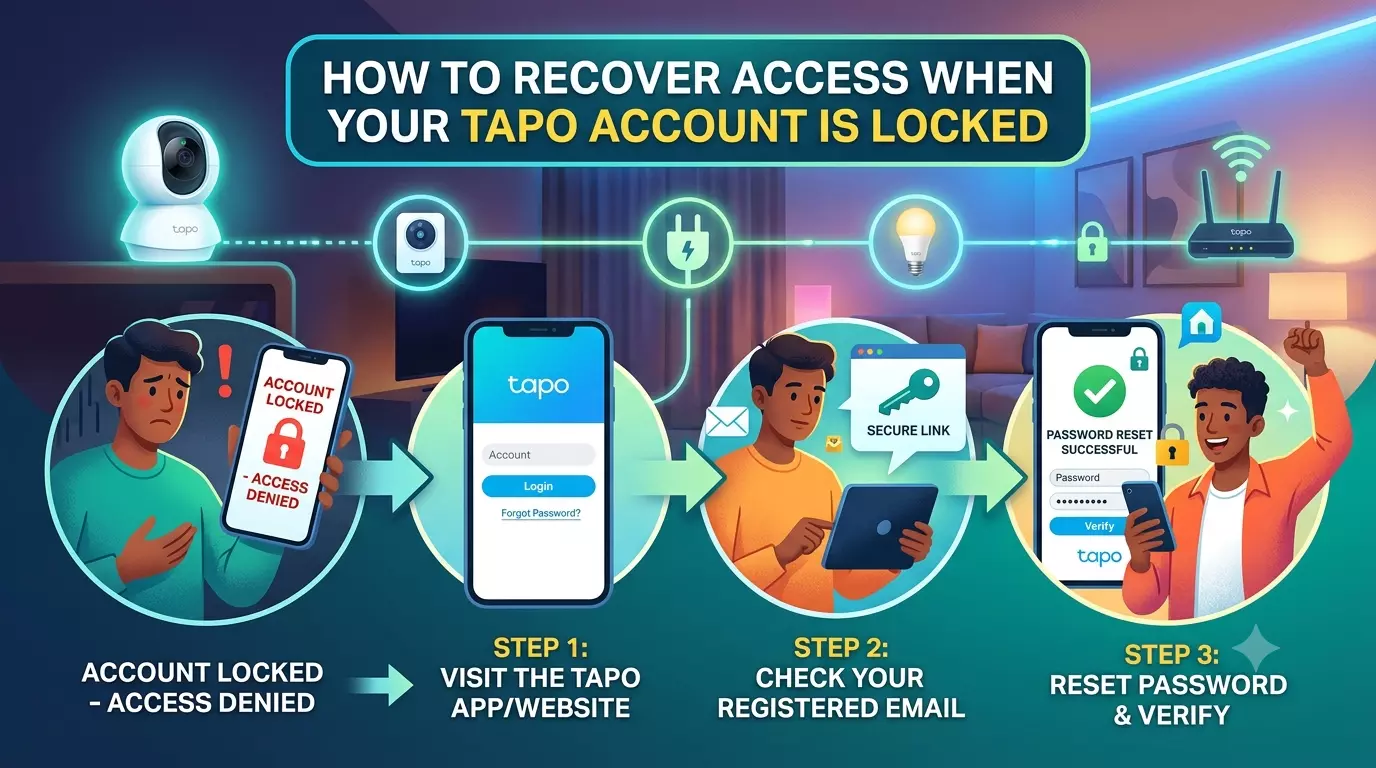
How to Recover Access When Your Tapo Account Is Locked
If your Tapo Account Locked message appears, reset your TP-Link ID password first. Then reopen the Tapo app and sign in with the new password. If tapo camera login is still not working, check your internet connection, update the Tapo app and try signing in from another device.
What Does a Tapo Account Locked Message Mean?
A locked Tapo account usually means you cannot sign in with your current login details. In many cases, the issue is linked to a forgotten password, repeated failed login attempts or a problem with the Tapo app.
Your Tapo app uses a TP-Link ID for normal sign-in. So, resetting your TP-Link ID password can restore access to Tapo and other supported TP-Link apps. Do not reset your camera right away. A camera reset is usually not needed just because you cannot log in.
When Should You Reset Your Tapo Password?
You should reset your password when you:
- Cannot remember your TP-Link ID password.
- See a Tapo Account Locked message.
- Keep getting a wrong password error.
- Cannot complete tapo camera login.
- Suspect someone else may have accessed your account.
- Receive a login alert that you do not identify.
TP-Link recommends using a unique password that is not reused on other websites or apps.
What and Why Should You Check First?
What to check
Why it matters
TP-Link ID email
You need the correct email to reset your password.
Password
An old or incorrect password can stop login.
Internet connection
A weak connection can cause tapo camera login not working issues.
Tapo app
An outdated app may cause login problems.
Verification code
Two-step verification may require an extra security code.
Read: How to Get in Touch with Facebook Support: A Complete Guide
How Can You Recover Access to a Locked Tapo Account?
Start with the easiest fix:
Reset your password.
- Open the Tapo app.
- Go to the login screen.
- Tap Forgot Password?
- Enter the email linked to your TP-Link ID.
- Check your email for the password reset message.
- Open the reset link.
- Generate a new password.
- Return to the Tapo app.
- Sign in with your new password.
TP-Link says you can also reset your TP-Link ID password through its cloud website. If the reset email does not arrive, check your spam or junk folder and make sure you put in the correct email address.
Why Is Tapo Camera Login Not Working After a Password Reset?
Sometimes the password is not the actual problem. Your phone, app or internet connection may be causing the issue. First, open another website on your phone. If the website does not load, fix your internet connection first.
Next, switch between Wi-Fi and mobile data. You can also try alternative Wi-Fi network. Make sure you have the up-to-date Tapo app version.
If the problem remains, uninstall and reinstall the app. TP-Link also recommends trying the login on another phone when troubleshooting TP-Link ID login problems.
How Do You Fix Tapo Account Login Problems?
Try these fixes one at a time:
1. Check Your Email
Make sure you are using the same email connected to your TP-Link ID.
2. Reset Your Password Again
If the old password keeps failing, use Tapo password reset instead of repeatedly trying different passwords.
3. Check Your Email Folders
Look in Spam, Junk, Promotions and other filtered folders.
4. Check Your Internet
Open a website on your phone. If it does not load, reconnect your Wi-Fi or try mobile data.
5. Update the Tapo App
Install the latest version available for your phone.
6. Try Another Device
Install Tapo on another phone and try signing in. This can help detect whether the problem is with your account or your original phone.
Can Two-Step Verification Cause Tapo Login Problems?
Yes. If two-step verification is enabled, Tapo may ask for a verification code when you sign in on a new device.
The code can be delivered through the Tapo app or email, depending on your verification setup. Check your notifications and email carefully.
If a code does not arrive, check your spam folder, confirm your internet connection and use the latest code. TP-Link notes that when multiple codes are requested, an older code may no longer work.
Problem
Can you try this?
Forgot password
Yes, use Tapo password recovery
Wrong password
Yes, reset the password
No reset email
Yes, check Spam/Junk and verify your email
App login fails
Yes, update or reinstall Tapo
Login fails on one phone
Yes, try another device
Unknown login alert
Yes, change your password and review account security
Do You Need to Reset Your Tapo Camera?
Usually, no. A Tapo camera factory reset is different from resetting your TP-Link account password. Resetting the camera can remove its current configuration and need you to set it up again.
Only consider a camera reset when you have a device configuration problem or need to move the camera to another account. TP-Link says a camera may need to be factory reset before it can be registered to another TP-Link account.
FAQs
How do I unlock my Tapo account?
If your Tapo account is locked, start by resetting your TP-Link ID password. Use the Forgot Password option in the Tapo app. Check your email for the reset link, generate a new password and then try signing in again.
Why is my Tapo camera login not working?
Tapo camera login not working can happen because of an incorrect password, poor internet, an outdated app or a verification problem. Check your connection, reset your password, update Tapo and try signing in from another device.
What should I do if I do not receive the Tapo password reset email?
First, check your Spam or Junk folder. Then confirm that you put in the email linked to your TP-Link ID. If the message still does not arrive, try the password reset process again and contact TP-Link Support if needed.
Do I need to reset my camera if my Tapo account is locked?
No. A locked account and a camera configuration issue are different problems. Try recovering your TP-Link ID first. A factory reset should only be considered when the camera itself needs to be reconfigured or moved to another account.
Final Thoughts
Generally, you don't need to reset your camera to solve a Tapo Account Locked issue. Start by recovering your password. Next, check your email, verification settings, Tapo app, and internet.
Try a different device and get in touch with TP-Link Support with your account information and error data if the tapo camera login still doesn't work after following these steps. This can facilitate a quicker identification of the precise problem.