Synology NAS Setup: A Short and Troubleshooting Guide
Synology NAS setup: a short and troubleshooting guide
Setting up a Synology NAS isn’t brain surgery, but it can trip you up if you rush it. This guide is short, messy, and practical — the stuff you actually need to get it running. No jargon, no sugarcoating, just real steps and quick fixes when things go sideways.
Physical Setup
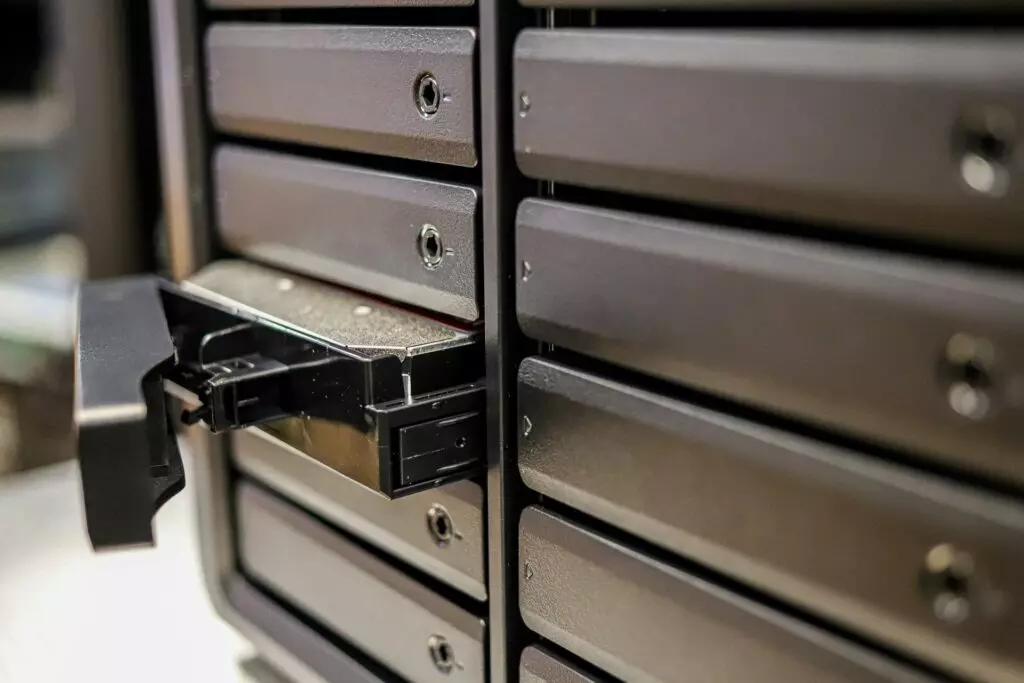
- Unbox it. Plug it in. Pop in the drives. Doesn’t matter if you’re doing SHR, RAID 1, RAID 5—just know what you want ahead of time.
- Connect it to your router. LAN cable, not Wi-Fi, don’t be cute.
- Power it up. Wait. It’ll beep when it’s ready.
Access DSM (DiskStation Manager)
- Open a browser. Go to find.synology.com.
- Your NAS should pop up. Click it.
- Follow the on-screen instructions. Basically, install DSM, set admin user, pick storage type.
Storage & Shares
- Go to Storage Manager.
- Create a volume. Pick your RAID type (SHR is dumb easy if you’re not picky).
- Make a shared folder. Permissions—set them now or you’ll hate yourself later.
Quick Wins
- Update DSM immediately. Don’t skip this. Security patches are real.
- Enable QuickConnect if you want remote access. It’s hit or miss but better than wrestling with port forwarding.
- Enable SMB & AFP if you want Macs and PCs to play nice.
Troubleshooting Stuff That Always Trips People Up
1. NAS Not Showing on find.synology.com
- Check your LAN cable. Swap it if in doubt.
- Make sure your PC is on the same network.
- If still nothing, hit the reset button (not full reset, just network reset).
2. Drives Not Detected
- Re-seat them.
- Make sure they’re supported drives (Synology has a list).
- If you swapped drives in a RAID, don’t panic. DSM will usually rebuild.
3. DSM Won’t Install / Update Fails
- Manual update. Download .pat file from Synology site, upload it.
- If that fails, check firewall / antivirus. Sometimes they block the installer.
4. Slow Transfer Speeds
- LAN, not Wi-Fi. Seriously.
- Jumbo frames can help if your switch/router supports it.
- Check RAID rebuilds or background indexing; that kills speed.
5. Permissions Nightmare
- Synology defaults are weird.
- Set permissions at the shared folder level, then fine-tune per user.
- If it’s a Windows network, enable “Enable Windows ACL” in advanced folder permissions.
Conclusion
So yeah, that’s the gist. NAS up and running, shares mapped, backups maybe working. If stuff breaks, don’t panic — check cables, IP, permissions, and DSM updates first. Synology isn’t magic, it’s finicky. Once it clicks, though? Sweet, painless storage everywhere. Keep poking, it’ll work.