QuickBooks Error 6000 Fix Guide - Expert Help 2025
Encountering QuickBooks Error 6000 can be incredibly frustrating, especially when you're in the middle of crucial accounting tasks. This persistent error often appears when accessing company files, leaving users unable to work efficiently. Don't worry – this comprehensive guide will walk you through everything you need to know about resolving this issue quickly and effectively.
What is QuickBooks Error 6000?
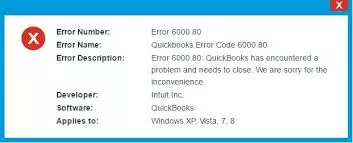
QuickBooks Error 6000 is a company file access error that typically occurs when QuickBooks Desktop cannot establish a proper connection with the company file database. This error can manifest in various forms, including Error 6000, -77, -80, -82, and other variations, each indicating slightly different underlying issues.
The error usually appears with messages like "An error occurred when QuickBooks tried to access the company file" or "QuickBooks Error 6000: Please try again." When this happens, users find themselves locked out of their essential business data.
Common Causes Behind QuickBooks Error 6000
Understanding the root causes helps in applying the most effective solution:
- Corrupted company files due to improper shutdowns or system crashes
- Network connectivity issues in multi-user environments
- Damaged QuickBooks installation files requiring repair or reinstallation
- Insufficient user permissions for accessing company files
- Firewall or antivirus interference blocking QuickBooks processes
- Outdated QuickBooks version with compatibility issues
- Hard drive corruption affecting file integrity
Step-by-Step Solutions to Fix QuickBooks Error 6000
Solution 1: Restart and Update QuickBooks
The simplest fix often works wonders:
- Close QuickBooks completely and restart your computer
- Launch QuickBooks as an administrator
- Navigate to Help > Update QuickBooks Desktop
- Install all available updates and restart the application
Solution 2: Use QuickBooks File Doctor
QuickBooks File Doctor is a powerful diagnostic tool:
- Download the QuickBooks Tool Hub from Intuit's official website
- Install and run the Tool Hub
- Select Company File Issues tab
- Click Run QuickBooks File Doctor
- Browse and select your company file
- Choose Check your file and let the tool complete its scan
Solution 3: Rename Network Data (.ND) and Transaction Log (.TLG) Files
This method resolves network-related conflicts:
- Navigate to your company file location
- Locate files with extensions .ND and .TLG
- Right-click each file and select Rename
- Add ".OLD" to the end of each filename
- Restart QuickBooks and attempt to open your company file
Solution 4: Configure Folder Permissions
Proper permissions are crucial for file access:
- Right-click your company file folder
- Select Properties > Security
- Click Edit and select your user account
- Check Full Control permissions
- Apply changes and restart QuickBooks
Solution 5: Disable Antivirus and Firewall Temporarily
Security software can sometimes interfere:
- Temporarily disable your antivirus software
- Turn off Windows Firewall
- Open QuickBooks and test file access
- Remember to re-enable security features afterward
- Add QuickBooks to your antivirus exclusion list
Advanced Troubleshooting Methods
Multi-User Mode Configuration
For network setups experiencing QuickBooks Error 6000:
- Ensure the server hosting company files has QuickBooks Database Server Manager installed
- Verify that all workstations can ping the server
- Check that QuickBooks services are running on the server
- Configure proper network sharing permissions
Database Connection Verification
Sometimes the issue lies in database connectivity:
- Open QuickBooks Database Server Manager
- Click Scan Folders and add your company file location
- Ensure the server can see and access all company files
- Restart QuickBooks services if necessary
Prevention Tips to Avoid Future Errors
Implementing these practices significantly reduces the likelihood of encountering QuickBooks Error 6000 again:
- Regular backups: Create automated daily backups of company files
- Proper shutdowns: Always close QuickBooks properly before turning off computers
- Network stability: Maintain stable network connections in multi-user environments
- Regular updates: Keep QuickBooks updated to the latest version
- System maintenance: Perform regular disk cleanup and defragmentation
- User training: Ensure all users understand proper QuickBooks protocols
Read This Blog: Reinstall QuickBooks Desktop
Conclusion
QuickBooks Error 6000 doesn't have to derail your business operations. With the comprehensive solutions outlined in this guide, you can tackle this error systematically and get back to managing your finances efficiently. Remember that prevention is always better than cure – implementing proper backup procedures and maintaining your QuickBooks installation will save you time and frustration in the long run.
For immediate expert assistance with QuickBooks Error 6000 or any other QuickBooks issues, call +1-866-500-0076 to speak with certified QuickBooks professionals who can resolve your problems quickly and efficiently.
Frequently Asked Questions
Q: How long does it take to fix QuickBooks Error 6000?
A: Most basic fixes take 15-30 minutes. Complex network issues may require 1-2 hours of troubleshooting.
Q: Can I prevent QuickBooks Error 6000 from happening again?
A: Yes, regular backups, proper shutdowns, keeping software updated, and maintaining stable network connections significantly reduce error occurrence.
Q: Will fixing Error 6000 affect my company data?
A: The troubleshooting methods are designed to preserve your data. However, always create a backup before attempting any fixes.
Q: Is QuickBooks Error 6000 the same across all versions?
A: The core error is similar, but specific solutions may vary slightly between QuickBooks Desktop versions.
Q: When should I call professional support at +1-866-500-0076?
A: Contact professional support if basic troubleshooting fails, you're dealing with network setups, or if the error keeps recurring despite fixes.