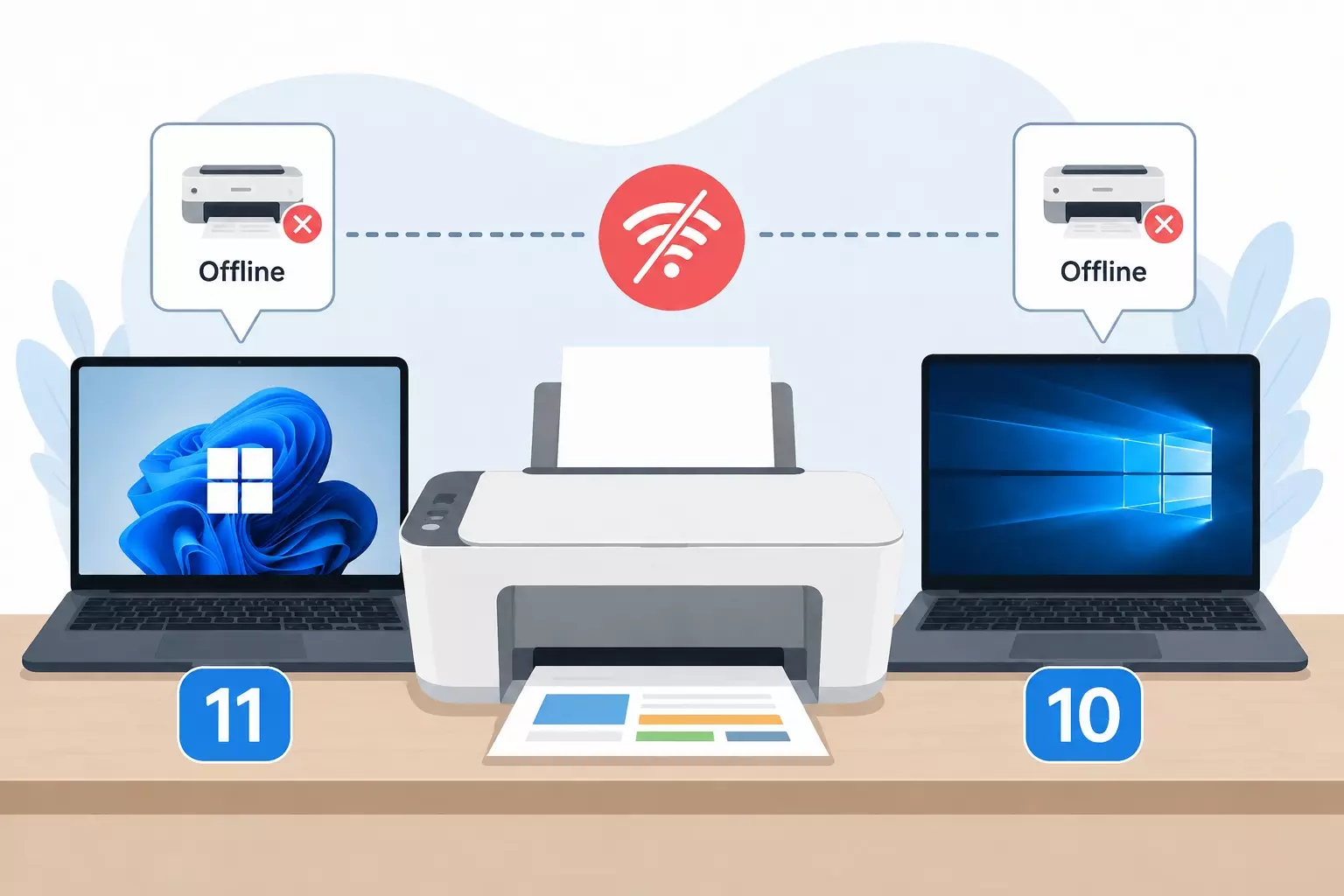
HP DeskJet 2855e Printer Offline: How to Get It Back Online
You send a document to your HP DeskJet 2855e, wait for the familiar sound of the printer starting up, and nothing happens. When you check the computer, Windows shows the printer as Offline.
This can be confusing, especially when the printer is switched on and appears to be connected to Wi-Fi. In many cases, though, an offline message doesn't mean there is anything seriously wrong with the printer. It simply means the computer and printer aren't communicating correctly at that moment.
A weak wireless connection, an incorrect printer selection, a stuck print job, Windows settings, or an outdated driver can all cause an HP DeskJet 2855e Printer Offline problem.
The best way to fix it is to start with simple checks and work through the possible causes one at a time.
Why Is My HP DeskJet 2855e Printer Offline?
The word "offline" is a communication status. Your computer sends a print job to the printer, but Windows cannot establish the connection it expects.
Several things can interrupt that connection.
For example, the printer may have disconnected from your Wi-Fi network after the router restarted. Windows might also be sending documents to an old copy of the printer that is no longer active. Sometimes a failed document remains stuck in the print queue and prevents everything behind it from printing.
The printer itself could also be waiting for attention because of a paper, ink, or hardware-related issue.
Before changing advanced settings, look at the printer itself.
1. Check the Printer First
Start with the obvious things because they are surprisingly easy to overlook.
Make sure your HP DeskJet 2855e is powered on and has finished starting up. Check for warning lights or error indications. Confirm that paper is loaded correctly and inspect the paper path if the printer recently had a jam.
If the printer appears normal but still shows offline on the computer, restart it.
Turn the printer off, wait about 30 seconds, and turn it back on. Give it enough time to reconnect before trying another print job.
This simple restart can clear temporary communication errors without changing any settings.
2. Restart the Computer and Router
If restarting the printer didn't help, restart the other devices involved in the connection.
Save your work and restart your computer. If you're using the printer over Wi-Fi, restarting the router can also help when the wireless network has developed a temporary connection problem.
After the router has restarted, allow it a few minutes to restore the network completely. Then turn on or reconnect the printer and computer.
Try printing a small document again.
3. Confirm That the Printer Is Connected to Wi-Fi
A printer can be powered on and still be offline because it is no longer connected to the correct wireless network.
Check the wireless status on the HP DeskJet 2855e. If the wireless connection has been lost, reconnect the printer to your Wi-Fi network using the normal setup process.
Also check the computer.
The printer and the device you're printing from should normally be on the same local network for wireless printing. This becomes particularly important in homes and offices with multiple Wi-Fi networks, guest networks, extenders, or separate network names.
For example, if your computer has connected to a guest network while the printer is connected to the main home network, they may not be able to discover each other properly.
Once both devices are on the intended network, check the printer status again.
4. Move the Printer Closer to the Router
Distance can cause intermittent printer problems.
Your HP DeskJet 2855e may technically remain connected to Wi-Fi while the signal is too weak to provide reliable communication. Walls, furniture, floors, and interference from nearby electronic equipment can affect wireless performance.
If possible, temporarily move the printer closer to the router and test it.
If the printer works reliably from the new location, the original problem may have been related to Wi-Fi coverage rather than the printer itself.
5. Make Sure Windows Is Using the Correct Printer
- Windows can retain old printer entries, especially if a printer has been installed more than once.
- Open Settings and go to:
- Bluetooth & devices > Printers & scanners
- Find your HP DeskJet 2855e and select it.
- If several similar HP printer entries appear, make sure you're sending the document to the currently installed and connected printer rather than an old or inactive copy.
- Open the document you want to print and check the printer selected in the application's Print window as well.
- This small check can save a lot of troubleshooting.
6. Check for "Use Printer Offline"
- Windows includes a setting that can deliberately place a printer into offline mode.
- Open the HP DeskJet 2855e print queue and look for an option called Use Printer Offline. Depending on your Windows version, the location and appearance of this option can vary.
- If the option is enabled, disable it and give Windows a moment to refresh the printer status.
- Then send a new test page.
- Don't repeatedly switch the setting on and off. If it is already disabled, move on to the next troubleshooting step.
7. Clear Stuck Documents From the Print Queue
- A failed print job can sometimes make a perfectly functional printer appear unresponsive.
- Open the print queue for your HP DeskJet 2855e and look at the documents waiting to print.
- Cancel jobs that are stuck, paused, duplicated, or no longer needed. Once the queue is empty, close it and try printing a simple one-page document.
- If Windows refuses to remove a stuck job, restarting the computer and printer may clear it. Persistent queue problems may require restarting the Windows printing service.
8. Restart the Windows Print Spooler
- Windows uses a background service called Print Spooler to manage printing.
- If that service stops responding correctly, your printer may appear offline or print jobs may remain permanently stuck.
- Press Windows + R, type:
- services.msc
- and press Enter.
- Find Print Spooler in the Services window. Right-click it and choose Restart.
- Wait a few seconds before checking the HP DeskJet 2855e again.
- Restarting the spooler doesn't reinstall the printer. It simply refreshes the Windows service responsible for handling print jobs.
9. Remove and Add the HP DeskJet 2855e Again
- If Windows still can't communicate with the printer, removing the existing printer entry and adding it again can rebuild the connection.
- Go to:
- Settings > Bluetooth & devices > Printers & scanners
- Select the HP DeskJet 2855e and choose the option to remove it.
- Restart the computer afterward.
- Once Windows has started again, return to Printers & scanners and use Add device to search for the printer.
- Make sure the printer is switched on and connected to the same network while Windows searches for it.
- After installation, print a test page before making any additional changes.
10. Check the HP Printer Software
- HP's printer software can also help determine whether the computer can see the DeskJet 2855e.
- Open the HP printer application you normally use and check whether the printer appears available.
- If the software cannot discover the printer, the issue is more likely to involve the network connection or printer installation rather than the individual document you're trying to print.
- If the printer was previously added but now appears unavailable, removing it from the application and adding it again may refresh the connection.
11. Update the Printer Driver and Software
- Drivers act as the communication layer between Windows and the printer. If the driver becomes damaged, outdated, or incorrectly installed, Windows may have difficulty communicating with the HP DeskJet 2855e.
- Check for an appropriate current driver or printer software for your Windows version.
- It's best to obtain printer software from HP or through trusted Windows update mechanisms rather than downloading drivers from random third-party websites.
- After updating or reinstalling the software, restart your computer before testing the printer.
12. Check Windows Update
- Printer problems sometimes appear after Windows changes, but Windows Update can also provide fixes and updated components.
- Open:
- Settings > Windows Update
- Check for available updates and install appropriate pending updates.
- Restart the computer if Windows asks you to.
- After the restart, allow the printer to reconnect and check whether its status has changed from Offline to Ready.
13. Temporarily Check VPN or Security Software
- A VPN changes how network traffic is routed. Some security programs can also restrict communication between devices on a local network.
- If the HP DeskJet 2855e works intermittently or disappears whenever a VPN is active, temporarily disconnect the VPN and test the printer again.
- Similarly, if the problem began immediately after changing firewall or security settings, review those changes.
- This doesn't mean you should permanently disable security software. The purpose of the test is simply to identify whether a network restriction is interfering with printer discovery.
- If printing works as soon as the VPN is disconnected, you have narrowed down the cause.
14. Watch for Changing Network Addresses
- Network printers receive an IP address from the router. Depending on the network configuration, that address can change.
- Windows may occasionally continue looking for the printer at an older address, which can contribute to situations where the HP DeskJet 2855e appears offline even though it remains connected to Wi-Fi.
- Restarting the printer, router, and computer can sometimes refresh these connections.
- If the offline problem keeps returning after router restarts or network changes, the printer's network configuration deserves closer inspection.
- Avoid manually changing IP settings unless you're comfortable managing network devices or have confirmed that the address is actually causing the problem.
15. Reconnect the Printer to the Wireless Network
- When nothing else works, reconnecting the HP DeskJet 2855e to Wi-Fi can provide a clean starting point.
- Use the printer's supported wireless setup procedure to place it into the appropriate setup state, then add it again through HP's setup software.
- During setup, keep the printer reasonably close to the router and make sure the phone or computer you're using is connected to the network you want the printer to join.
- Follow the prompts until the printer is successfully added.
- After setup is complete, print a test page.
If the HP DeskJet 2855e Keeps Going Offline
- A printer that works after restarting but repeatedly goes offline deserves a little more investigation.
- Pay attention to when the problem occurs.
- Does the printer disconnect after sitting unused for several hours? Does it happen after restarting the router? Does Windows show multiple copies of the same printer? Does printing work when a VPN is disconnected? Does moving the printer closer to the router solve the issue?
- These patterns are useful because they point toward the underlying cause.
- For instance, a printer that works perfectly near the router but frequently disconnects in another room probably has a wireless coverage problem. If only one computer reports the printer as offline while other devices print normally, the issue is more likely related to that computer's Windows configuration or printer installation.
- If every device loses access to the printer at the same time, concentrate on the printer's Wi-Fi connection and the local network.
A Better Order for Troubleshooting
- When your HP DeskJet 2855e printer says offline, avoid changing several settings at once. Doing so can make it difficult to identify what actually fixed the problem.
- Start with the printer itself. Check its power, paper, warning indicators, and wireless connection. Restart it and test again.
- Next, confirm that the computer and printer are connected to the intended network. Check that Windows has selected the correct printer and that Use Printer Offline isn't enabled.
- If the problem remains, clear the print queue and restart the Print Spooler. Only after those basic steps should you move toward removing and reinstalling the printer or updating its software.
- This approach is quicker and reduces unnecessary changes.
Final Thoughts
Seeing HP DeskJet 2855e printer offline doesn't automatically mean the printer has failed. More often, Windows has temporarily lost communication with the printer because of Wi-Fi connectivity, an incorrect printer selection, a stuck queue, a Windows printing service issue, or a software problem.
Begin with the simplest checks: restart the printer, confirm the Wi-Fi connection, and make sure Windows is using the correct device. Then clear pending print jobs and check the offline setting.
If the printer still isn't responding, restart the Print Spooler, update the printer software, or remove and reinstall the HP DeskJet 2855e.
Working through the problem in this order usually makes it much easier to determine whether the real issue is the printer, Windows, or the network connecting them.