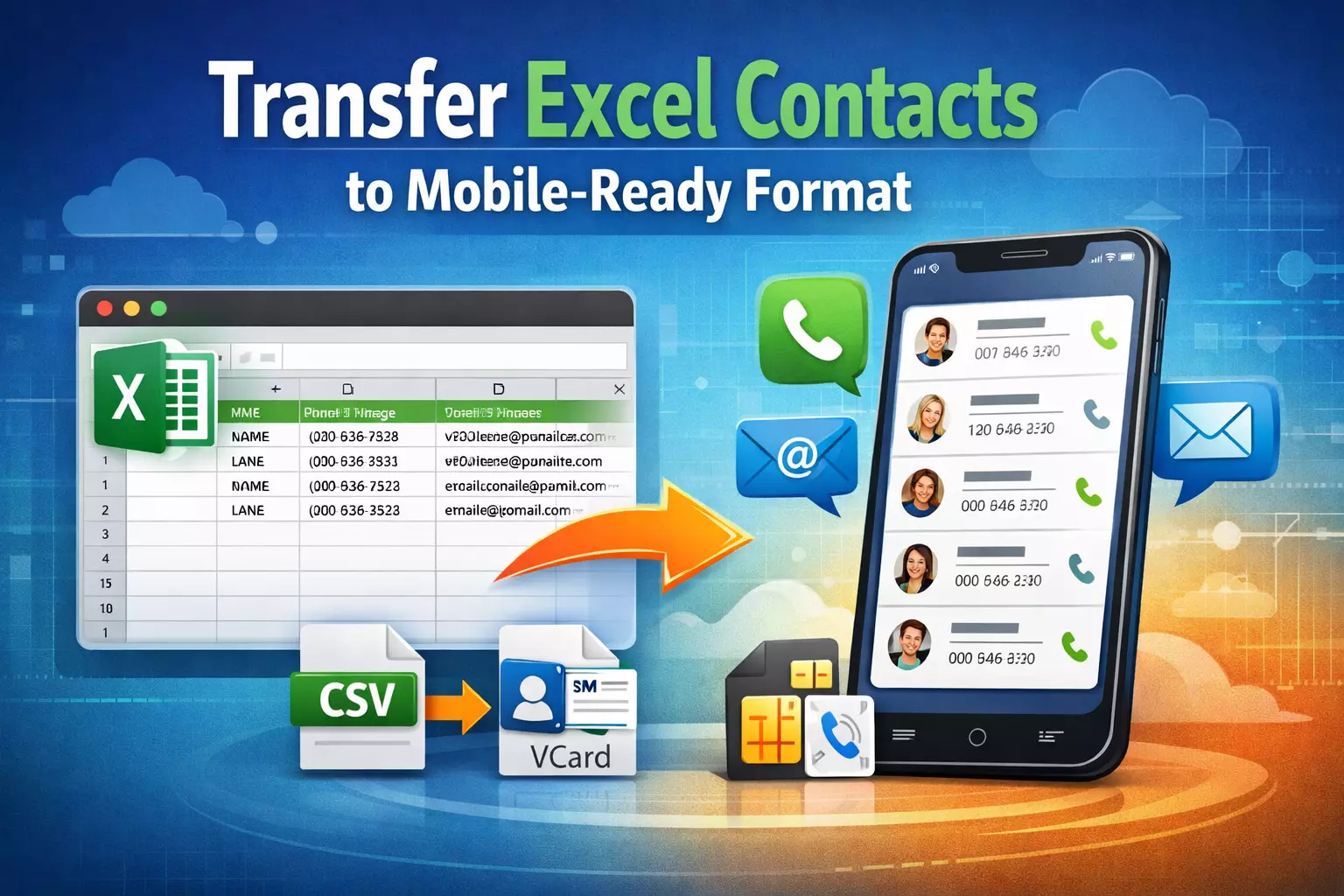
How to Transfer Excel Contacts to Mobile-Ready Format Instantly?
Many users and organizations store their contact details in Excel because it provides a simple way to manage, organize, and update large lists. Excel allows for structured storage of data, and with customizable columns like phone number, names, and email addresses.
However, if you need to copy Excel contacts to Android or other smartphones, it isn’t possible directly. In these situations, users seek a reliable solution to transfer Excel contacts to a mobile-ready format, maintaining accurate details and syncing them across various devices without formatting issues.
In this guide, we’ll explore the different techniques to make the contact list accessible on other devices that are stored in a spreadsheet.
Why Need to Transfer Contacts from Excel to Mobile-Compatible Format?
Excel is commonly used for organizing and managing contact data, but not supported by other devices directly. Mobile devices cannot read data from .xls or .xlsx files, which makes it difficult to transfer a contact list from a spreadsheet to an address book.
To make the information accessible, you need to convert the Excel file into VCF file format. Here are some reasons why conversion is important:
- Provide direct access on mobile devices when users transfer Excel contacts to mobile-ready format.
- Improves contact management and maintains structured fields like phone number, names, email, etc.
- Quick communication with other people without manual lookup from a spreadsheet in Excel.
- Converting files in VCF format makes it easy to share and back up without any data loss or formatting issues.
How to Transfer Excel Contacts to Mobile-Ready Format? Overview
Moving Excel files to mobile devices is not an easy task because we cannot directly transfer Excel files to our devices. It is so because mobile phones support vCard to import and access contacts.
Hence, first, we have to convert the Excel contacts to the Virtual Contact File (VCF) format to make it accessible and readable for other forms. Only after that, the import operation will be performed.
Note: Virtual Contact File is an electronic business card that incorporates all the details about contacts. It is compatible with almost all email client applications, web services, cloud services, devices, etc.
Transfer Contacts from Excel to Smartphones - Manually
To know how to save contacts from Excel to a smartphone manually, divide the process into four major steps. It is recommended to execute the steps sequentially and carefully.
Step 1. Save Excel Contacts to CSV Format
- Initially, open your Excel contacts file by using the MS Excel program.
- Select file >> save as option.
- Choose CSV from the drop-down & save contacts in CSV format.
- See Excel contacts saved in CSV format.
Step 2. Transfer CSV Contacts to Gmail
- Sign in to Gmail with your computer and select contacts.
- Hit the import button as shown in the screenshot.
- Choose the CSV contact file and press the open button.
- Press Import to start importing contacts in Gmail.
- After that, users can see all contacts transferred from Gmail.
Step 3. Sync Gmail Contacts to Mobile Phones
- Go to Import/Export contacts obtainable from contacts or settings.
- Select Import from Storage Device as shown in the figure below
- Choose the VCF file from the storage drive and press the import button.
- Transferring vCard contacts to the mobile phone, please wait.
Automated Solution to Transfer Excel Contacts to Mobile - Ready Format
You may get confused after following the manual way. This method takes a lot of time due to the lengthy process. So if you need to quickly convert Excel files to VCF format without losing any contact details. Then, use the SysTools Excel to vCard Converter, which is the simplest and most professionally tested solution.
Moreover, this tool supports both technical and non-technical users to easily import contacts from Excel to their phones without facing any technical challenges. It provides advanced feature to make the process effortless. Using its simple and clean interface, beginners can also operate the task seamlessly.
Quick Working Steps to Transfer Multiple Contacts from Excel to Phone
Follow the steps below to transfer contacts from Excel to your phone in a seamless manner:
- Download and run the software on your System and select the browse button.
- Now, add the Excel File & preview the complete data in the software panel
- After that, view the list of match attributes
- Convert Excel into VCF format without any restrictions.
- Lastly, import the VCF file to the mobile phone directly.
Advanced Features of the Software
- This advanced software can save bulk contacts in a phone from Excel to XLSX and XLS to vCard easily, without any data loss.
- It supports exporting contact details like name, phone number, and email from Excel.
- It is capable enough to handle various Excel file types, including templates and workbooks.
- This will create separate or combined vCard files for all contacts
- It is designed in such a way that it can work easily with contacts in Outlook, Gmail, iPhone, and more
- The generated vCard files can be imported into Android devices of all brands
Read: Your Guide to the Best IT & Tech Courses You Can Take
Best Practices for Easy Conversion
- Remember to take a backup of the Excel contact data.
- Use proper column names like first name, last name, email, phone number, etc.
- Verify and check the CSV/ VCF file before importing it to a smartphone.
- Avoid formatting issues like merged cells and more.
Final Thoughts!
In this guide, we have discovered two different methods to transfer Excel contacts to mobile-ready format. Both manual and automated solutions provide results, but the manual method always comes with limitations. So, we recommend you choose an expert technique to move contacts from Excel to other mobile devices securely and efficiently.