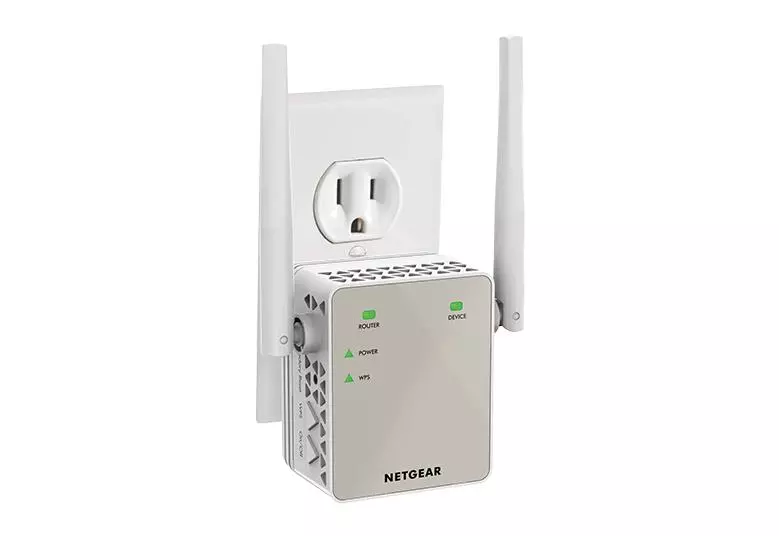
How to Reset Netgear Extender via Mywifiext.net?
Okay, so your Netgear extender is acting up. Slow Wi-Fi, keeps dropping, or maybe you just forgot the password. Whatever it is, sometimes you just got to wipe the slate clean and start over. That means a full reset. And yes, you can do it through that annoying little web portal everyone mentions — mywifiext. Here’s the deal: we’re going to walk through the reset step-by-step.
Why You Need to Reset the Netgear Extender?
Extenders are supposed to make your Wi-Fi life easier. But half the time, they just… don’t. Slow speeds, constant dropouts, flashing lights that don’t make sense. Before you start tearing your hair out or buying a new one, do this: reset it.
Why? Because these little boxes get messy. Config files get corrupted. IP addresses collide. Firmware updates fail silently. Basically, your extender is holding on to bad info and refusing to let go. A reset? That’s like hitting the refresh button on its brain.
How to Reset Netgear Extender from Mywifiext.net?
Find the Reset Button
Look at your extender. Tiny pinhole, usually on the back. That’s your reset button. Don’t confuse it with the WPS button. You need a paperclip or a pen tip.
Power It Up
Make sure the extender is plugged in and on. You want those lights alive. If it’s off, nothing works.
Press and Hold
Stick that paperclip in the reset hole. Hold it for about 10 seconds. Some models need 15–30 seconds, just keep an eye on the lights. They usually blink or go off and on again. That’s your cue it’s resetting.
Wait
Don’t rush. Give it a minute or two after the lights do their thing. Extender’s basically rebooting with a clean slate.
Reconnect via Mywifiext.net
Open a browser. Type mywifiext.net in the address bar. Not Google, not search, directly in the bar. Hit enter.
- If it loads Nighthawk login interface, good. You’re back at setup.
- If it doesn’t, check your device is connected to the extender’s Wi-Fi (look for something like NETGEAR_EXT).
Setup Like New
Follow the on-screen steps. Pick your Wi-Fi, set a new password, maybe rename the extender. Done.
Other Reset Methods
1. The Tiny Paperclip Method (Hard Reset)
Yeah, everyone knows the little pinhole reset. But here’s the thing—you gotta hold it long enough. Like 15–20 seconds. Some of these models are stubborn. Light should blink. Wait a full minute before plugging it back in. If you let go too early, it’s basically just teasing you.
2. Power Cycle Reset
Sounds dumb, but it fixes a surprising number of “it’s broken” cases.
- Unplug it. Wait 30 seconds.
- Press and hold the reset button while you plug it back in. Keep holding for 10–15 seconds.
- Wait for lights. Test the connection.
3. NVRAM / Manual Firmware Trick
Okay, this is more hacker-level. Some models let you trigger a reset by messing with the firmware page. Not all, but worth trying if it’s bricked:
- Log in via browser.
- Upload a firmware file. Some extenders will auto-reset when a new firmware is forced, even if it’s the same version.
4. Mobile App Forced Reset
If you’re using the Nighthawk or Netgear WiFi app:
- Open the extender page in the app.
- Look for “Advanced Settings” → “Reset.”
- Tap it. Let it run. Don’t touch the unit while it’s resetting.
Other troubleshooting tips than reset
Check the obvious stuff first
Cable plugged in? Wi-Fi actually working? Power on? I swear, 30% of tech problems are this basic. Don’t skip it.
Restart, but properly
I don’t mean hit the power button and hope. Shut it down fully. Wait 10-15 seconds. Boot back up. Often clears the junk that a soft restart misses.
Update drivers/software
Outdated drivers are sneaky little gremlins. Graphics, network, OS updates — get them all. Even if you hate updates, do it through the 192.168.1.250 interface. Sometimes the fix is literally just “install latest patch.”
Check for conflicting software
Antivirus, firewalls, some “helper apps” — they can silently mess things up. Disable one at a time if you can, see if it fixes the issue.
Logs are your friend
Most software has logs somewhere. Windows Event Viewer, Mac Console, Linux logs. If you peek at them, sometimes the error is super obvious. Even if it’s cryptic, Google it.
Safe Mode / Clean Boot
Booting clean is ugly but effective. It strips down to the basics, no extra software, no weird background stuff. If it works there, you know it’s some app or service fighting your system.
Hardware check
RAM, SSD/HDD, cables, monitors. Hardware fails in weird ways that mimic software bugs. Swapping parts or testing with a spare can save hours of guesswork.
Network deep dive
If it’s internet-related, don’t just reset the router. Ping stuff. Check DNS. Flush caches. Sometimes your ISP is the culprit.
Permissions / user profile
Weird bugs sometimes live in your user account. Try another account. If it works there, your profile’s corrupt. Not fun, but better than a full reinstall.