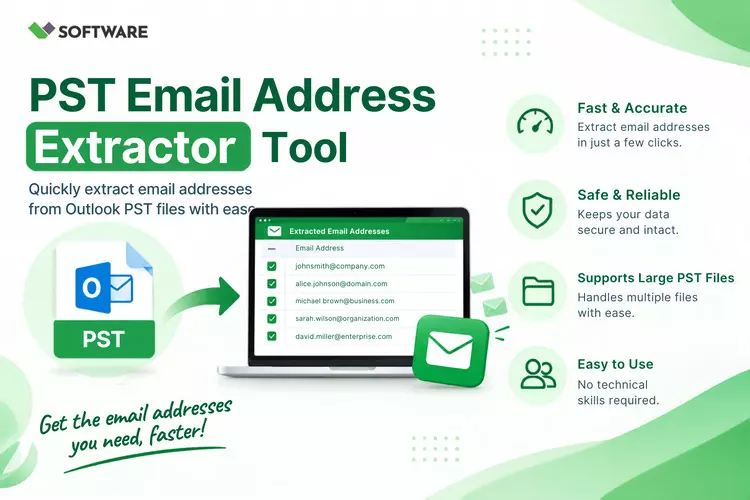
How to Extract Specific Email Addresses from Outlook PST Files
Microsoft Outlook PST files often contain years of communication with customers, employees, vendors, and business partners.
Although some addresses may be saved in the Contacts folder, many remain hidden in the From, To, CC, and BCC fields of individual messages. They may also appear in email signatures, message bodies, headers, and forwarded conversations.
Finding a few specific addresses manually may be manageable, but examining thousands of messages is time-consuming and unreliable.
A PST Email Address Extractor can scan the mailbox, apply targeted filters, remove duplicate entries, and save the required addresses in an organized format.
This guide explains how to extract specific email addresses from Outlook PST files while maintaining accuracy, privacy, and control over the results.
Why Extract Email Addresses From PST Files?
A PST, or Personal Storage Table, is a data file used by Microsoft Outlook to store mailbox information. Depending on the Outlook configuration, it can contain emails, attachments, contacts, calendars, tasks, notes, and custom folders.
Users may need to extract addresses from these files for several legitimate purposes:
- Rebuilding an Outlook contact list
- Identifying people connected to a particular project
- Migrating approved contacts to a new platform
- Reviewing historical business communication
- Finding external senders and recipients
- Preparing information for audits or investigations
- Recovering contacts from an old Outlook archive
- Separating internal and external email accounts
Extraction should always be performed with proper authorization. Finding an address in a mailbox does not automatically provide consent to send advertising or unsolicited messages.
Where Are Email Addresses Stored in a PST File?
Email addresses may be present in several areas of an Outlook mailbox. Understanding these locations helps users choose the correct extraction settings.
From Field
The From field identifies the sender of a received message. Scanning this field can help users create a list of people or organizations that contacted the mailbox owner.
To, CC, and BCC Fields
These fields contain the primary and copied recipients of a message. Extracting from Sent Items can be useful for identifying people the mailbox owner contacted.
BCC information is generally available only where it was originally stored and accessible. A tool cannot reveal hidden BCC recipients from incoming messages if those details are not present in the PST data.
Email Headers
Message headers can contain sender, recipient, reply-to, routing, and technical address information. Header extraction may provide useful details, but it can also collect automated server addresses that require filtering.
Message Bodies and Signatures
Addresses may appear in signatures, forwarded conversations, quoted text, and plain-text or HTML message bodies. Scanning these areas can increase coverage, but it may also produce irrelevant or outdated results.
Outlook Contacts
The Contacts folder may contain email addresses along with names, organizations, phone numbers, and other information. If structured contact information is required, this folder should be included in the extraction process.
Manual Methods to Find Specific Addresses
Microsoft Outlook provides built-in search options that can help users locate addresses in a small mailbox. Users can search by sender, recipient, subject, date, or keyword and then examine matching messages.
Search queries may be used to locate emails from a particular domain or person. Users can also review Sent Items, open the required emails, and copy recipient addresses manually.
This method is suitable when only a few contacts are needed. However, it has several limitations:
- Each result must be checked manually.
- The same address may be copied several times.
- Hidden or less obvious mailbox folders may be missed.
- Addresses in message bodies require additional inspection.
- Exporting a clean and structured list is difficult.
- Processing large PST files takes considerable time.
For a large mailbox or a highly specific extraction requirement, dedicated PST Email Address Extractor Software is usually more practical.
How to Extract Specific Email Addresses From PST
The exact options vary by application, but the following workflow can be used with most professional extraction tools.
Step 1: Back Up the PST File
Create a copy of the original PST before processing it. Use the copied file for extraction and keep the original in a secure location.
A reliable tool should read the PST without modifying its contents, but a separate backup provides additional protection.
Step 2: Add the Outlook PST File
Launch the selected software and choose the option to add or browse for a PST file. Some applications can automatically locate PST files associated with an Outlook profile, while others require manual file selection.
For multiple archives, look for a batch-processing option.
Step 3: Preview the Mailbox Folders
After scanning the file, the application should display its folder hierarchy. Review folders such as Inbox, Sent Items, Deleted Items, Archives, and custom project folders.
Select only the folders relevant to the extraction. Excluding Junk Email, Deleted Items, and unrelated personal folders can improve the quality of the results.
Read: Free Temporary Email Generator for Instant Disposable Gmail
Step 4: Choose the Required Address Fields
Select the locations from which the software should collect addresses. Available choices may include:
- Sender addresses
- To recipients
- CC recipients
- BCC recipients
- Reply-to fields
- Message headers
- Message bodies
- Email signatures
- Outlook contacts
If the goal is to identify customers who contacted the organization, scanning the From field in selected Inbox folders may be sufficient. If the goal is to recover previously contacted people, the To and CC fields in Sent Items may be more relevant.
Step 5: Apply Specific Filters
Filters are essential when users need targeted results instead of every address in the mailbox.
A capable PST Email Address Extractor may support filtering by:
- Date range
- Mailbox folder
- Sender or recipient
- Domain name
- Subject keyword
- Message content
- Attachment presence
- Internal or external address type
Step 6: Remove Duplicate and Unwanted Addresses
The same address may appear in hundreds of conversations. Enable duplicate removal so the final list contains only unique entries.
It is also useful to exclude automated accounts such as no-reply addresses, delivery notification accounts, mailing-list systems, and server-generated addresses. The results should be reviewed for malformed or incomplete entries before export.
Step 7: Preview and Export the Results
Review the extracted list and confirm that it matches the intended criteria. Then choose an appropriate output format.
Common export options include:
- CSV for spreadsheets and CRM platforms
- TXT for a simple address list
- XLSX for structured spreadsheet records
- VCF for compatible contact applications
- HTML for browser-based review
CSV is often the most flexible choice because it can store separate columns for email address, display name, source folder, domain, and other details.
Features to Look for in Extraction Software
When selecting PST Email Address Extractor Software, users should evaluate more than extraction speed. The solution should provide enough control to locate relevant addresses accurately.
Important capabilities include:
- Extraction from From, To, CC, and BCC fields
- Scanning of headers, signatures, and message bodies
- Selective folder processing
- Domain inclusion and exclusion filters
- Date-range filtering
- Automatic duplicate removal
- Batch processing of multiple PST files
- Support for large PST archives
- Compatibility with ANSI and Unicode PST files
- Preview before export
- Multiple output formats
- Clear processing logs
If the software claims to support damaged PST files, users should test that function carefully. Severe corruption may require a dedicated PST repair process before addresses can be extracted reliably.
How to Improve the Accuracy of Extracted Results
Broad extraction settings can generate a large list, but a larger list is not necessarily more useful. Accuracy improves when users define the extraction objective before starting.
For example, to identify recent external customers, users might scan only the From field in the Inbox, choose a recent date range, and exclude the company’s internal domain. To rebuild a contact list, they may scan the Contacts folder along with To and CC fields in Sent Items.
Users should also watch for:
- Obsolete addresses from old conversations
- Automated no-reply accounts
- Addresses quoted in forwarded messages
- Typographical errors in message bodies
- Group aliases instead of individual accounts
- Duplicate addresses with different capitalization
- Internal technical or routing addresses
A final manual review remains important even when the extraction is automated.
Security and Privacy Considerations
PST files may contain confidential messages, personal data, and sensitive business information. For this reason, only authorized users should process them.
Desktop-based software generally keeps extraction on the local computer, whereas an online service may require the entire PST file to be uploaded. Before using any online solution, review its security controls, storage practices, deletion policy, and privacy terms.
The exported contact list must also be protected. Save it in an approved location, restrict access, and delete temporary copies when they are no longer required. Organizations should follow applicable privacy laws, retention requirements, and internal information-security policies.
Conclusion
The most effective way to extract email addresses from PST archives is to define the required contacts, choose the correct mailbox sources, and apply precise filters.
Outlook’s built-in search may be sufficient for a few addresses, but it becomes inefficient when users must examine a large or complex mailbox.
A dependable PST Email Address Extractor can scan selected folders, collect addresses from multiple fields, remove duplicates, and export the results into a structured file.
By choosing suitable PST Email Address Extractor Software, backing up the source data, and reviewing the extracted list carefully, users can manage Outlook contacts more efficiently without compromising data accuracy or privacy.
Microsoft Outlook PST files often contain years of communication with customers, employees, vendors, and business partners. Although some addresses may be saved in the Contacts folder, many remain hidden in the From, To, CC, and BCC fields of individual messages. They may also appear in email signatures, message bodies, headers, and forwarded conversations.
Finding a few specific addresses manually may be manageable, but examining thousands of messages is time-consuming and unreliable.
A PST Email Address Extractor can scan the mailbox, apply targeted filters, remove duplicate entries, and save the required addresses in an organized format.
This guide explains how to extract specific email addresses from Outlook PST files while maintaining accuracy, privacy, and control over the results.
Why Extract Email Addresses From PST Files?
A PST, or Personal Storage Table, is a data file used by Microsoft Outlook to store mailbox information. Depending on the Outlook configuration, it can contain emails, attachments, contacts, calendars, tasks, notes, and custom folders.
Users may need to extract addresses from these files for several legitimate purposes:
- Rebuilding an Outlook contact list
- Identifying people connected to a particular project
- Migrating approved contacts to a new platform
- Reviewing historical business communication
- Finding external senders and recipients
- Preparing information for audits or investigations
- Recovering contacts from an old Outlook archive
- Separating internal and external email accounts
Extraction should always be performed with proper authorization. Finding an address in a mailbox does not automatically provide consent to send advertising or unsolicited messages.
Where Are Email Addresses Stored in a PST File?
Email addresses may be present in several areas of an Outlook mailbox. Understanding these locations helps users choose the correct extraction settings.
From Field
The From field identifies the sender of a received message. Scanning this field can help users create a list of people or organizations that contacted the mailbox owner.
To, CC, and BCC Fields
These fields contain the primary and copied recipients of a message. Extracting from Sent Items can be useful for identifying people the mailbox owner contacted.
BCC information is generally available only where it was originally stored and accessible. A tool cannot reveal hidden BCC recipients from incoming messages if those details are not present in the PST data.
Email Headers
Message headers can contain sender, recipient, reply-to, routing, and technical address information. Header extraction may provide useful details, but it can also collect automated server addresses that require filtering.
Message Bodies and Signatures
Addresses may appear in signatures, forwarded conversations, quoted text, and plain-text or HTML message bodies. Scanning these areas can increase coverage, but it may also produce irrelevant or outdated results.
Outlook Contacts
The Contacts folder may contain email addresses along with names, organizations, phone numbers, and other information. If structured contact information is required, this folder should be included in the extraction process.
Manual Methods to Find Specific Addresses
Microsoft Outlook provides built-in search options that can help users locate addresses in a small mailbox. Users can search by sender, recipient, subject, date, or keyword and then examine matching messages.
Search queries may be used to locate emails from a particular domain or person. Users can also review Sent Items, open the required emails, and copy recipient addresses manually.
This method is suitable when only a few contacts are needed. However, it has several limitations:
- Each result must be checked manually.
- The same address may be copied several times.
- Hidden or less obvious mailbox folders may be missed.
- Addresses in message bodies require additional inspection.
- Exporting a clean and structured list is difficult.
- Processing large PST files takes considerable time.
For a large mailbox or a highly specific extraction requirement, dedicated PST Email Address Extractor Software is usually more practical.
How to Extract Specific Email Addresses From PST
The exact options vary by application, but the following workflow can be used with most professional extraction tools.
Step 1: Back Up the PST File
Create a copy of the original PST before processing it. Use the copied file for extraction and keep the original in a secure location.
A reliable tool should read the PST without modifying its contents, but a separate backup provides additional protection.
Step 2: Add the Outlook PST File
Launch the selected software and choose the option to add or browse for a PST file. Some applications can automatically locate PST files associated with an Outlook profile, while others require manual file selection.
For multiple archives, look for a batch-processing option.
Step 3: Preview the Mailbox Folders
After scanning the file, the application should display its folder hierarchy. Review folders such as Inbox, Sent Items, Deleted Items, Archives, and custom project folders.
Select only the folders relevant to the extraction. Excluding Junk Email, Deleted Items, and unrelated personal folders can improve the quality of the results.
Step 4: Choose the Required Address Fields
Select the locations from which the software should collect addresses. Available choices may include:
- Sender addresses
- To recipients
- CC recipients
- BCC recipients
- Reply-to fields
- Message headers
- Message bodies
- Email signatures
- Outlook contacts
If the goal is to identify customers who contacted the organization, scanning the From field in selected Inbox folders may be sufficient. If the goal is to recover previously contacted people, the To and CC fields in Sent Items may be more relevant.
Step 5: Apply Specific Filters
Filters are essential when users need targeted results instead of every address in the mailbox.
A capable PST Email Address Extractor may support filtering by:
- Date range
- Mailbox folder
- Sender or recipient
- Domain name
- Subject keyword
- Message content
- Attachment presence
- Internal or external address type
For example, a user can include addresses ending in, exclude the organization’s internal domain, or process only messages exchanged during a specific year.
Step 6: Remove Duplicate and Unwanted Addresses
The same address may appear in hundreds of conversations. Enable duplicate removal so the final list contains only unique entries.
It is also useful to exclude automated accounts such as no-reply addresses, delivery notification accounts, mailing-list systems, and server-generated addresses. The results should be reviewed for malformed or incomplete entries before export.
Step 7: Preview and Export the Results
Review the extracted list and confirm that it matches the intended criteria. Then choose an appropriate output format.
Common export options include:
- CSV for spreadsheets and CRM platforms
- TXT for a simple address list
- XLSX for structured spreadsheet records
- VCF for compatible contact applications
- HTML for browser-based review
CSV is often the most flexible choice because it can store separate columns for email address, display name, source folder, domain, and other details.
Features to Look for in Extraction Software
When selecting PST Email Address Extractor Software, users should evaluate more than extraction speed. The solution should provide enough control to locate relevant addresses accurately.
Important capabilities include:
- Extraction from From, To, CC, and BCC fields
- Scanning of headers, signatures, and message bodies
- Selective folder processing
- Domain inclusion and exclusion filters
- Date-range filtering
- Automatic duplicate removal
- Batch processing of multiple PST files
- Support for large PST archives
- Compatibility with ANSI and Unicode PST files
- Preview before export
- Multiple output formats
- Clear processing logs
If the software claims to support damaged PST files, users should test that function carefully. Severe corruption may require a dedicated PST repair process before addresses can be extracted reliably.
How to Improve the Accuracy of Extracted Results
Broad extraction settings can generate a large list, but a larger list is not necessarily more useful. Accuracy improves when users define the extraction objective before starting.
For example, to identify recent external customers, users might scan only the From field in the Inbox, choose a recent date range, and exclude the company’s internal domain. To rebuild a contact list, they may scan the Contacts folder along with To and CC fields in Sent Items.
Users should also watch for:
- Obsolete addresses from old conversations
- Automated no-reply accounts
- Addresses quoted in forwarded messages
- Typographical errors in message bodies
- Group aliases instead of individual accounts
- Duplicate addresses with different capitalization
- Internal technical or routing addresses
A final manual review remains important even when the extraction is automated.
Security and Privacy Considerations
PST files may contain confidential messages, personal data, and sensitive business information. For this reason, only authorized users should process them.
Desktop-based software generally keeps extraction on the local computer, whereas an online service may require the entire PST file to be uploaded. Before using any online solution, review its security controls, storage practices, deletion policy, and privacy terms.
The exported contact list must also be protected. Save it in an approved location, restrict access, and delete temporary copies when they are no longer required.
Organizations should follow applicable privacy laws, retention requirements, and internal information-security policies.
Conclusion
The most effective way to extract email addresses from PST archives is to define the required contacts, choose the correct mailbox sources, and apply precise filters.
Outlook’s built-in search may be sufficient for a few addresses, but it becomes inefficient when users must examine a large or complex mailbox.
A dependable PST Email Address Extractor can scan selected folders, collect addresses from multiple fields, remove duplicates, and export the results into a structured file.
By choosing suitable PST Email Address Extractor Software, backing up the source data, and reviewing the extracted list carefully, users can manage Outlook contacts more efficiently without compromising data accuracy or privacy.