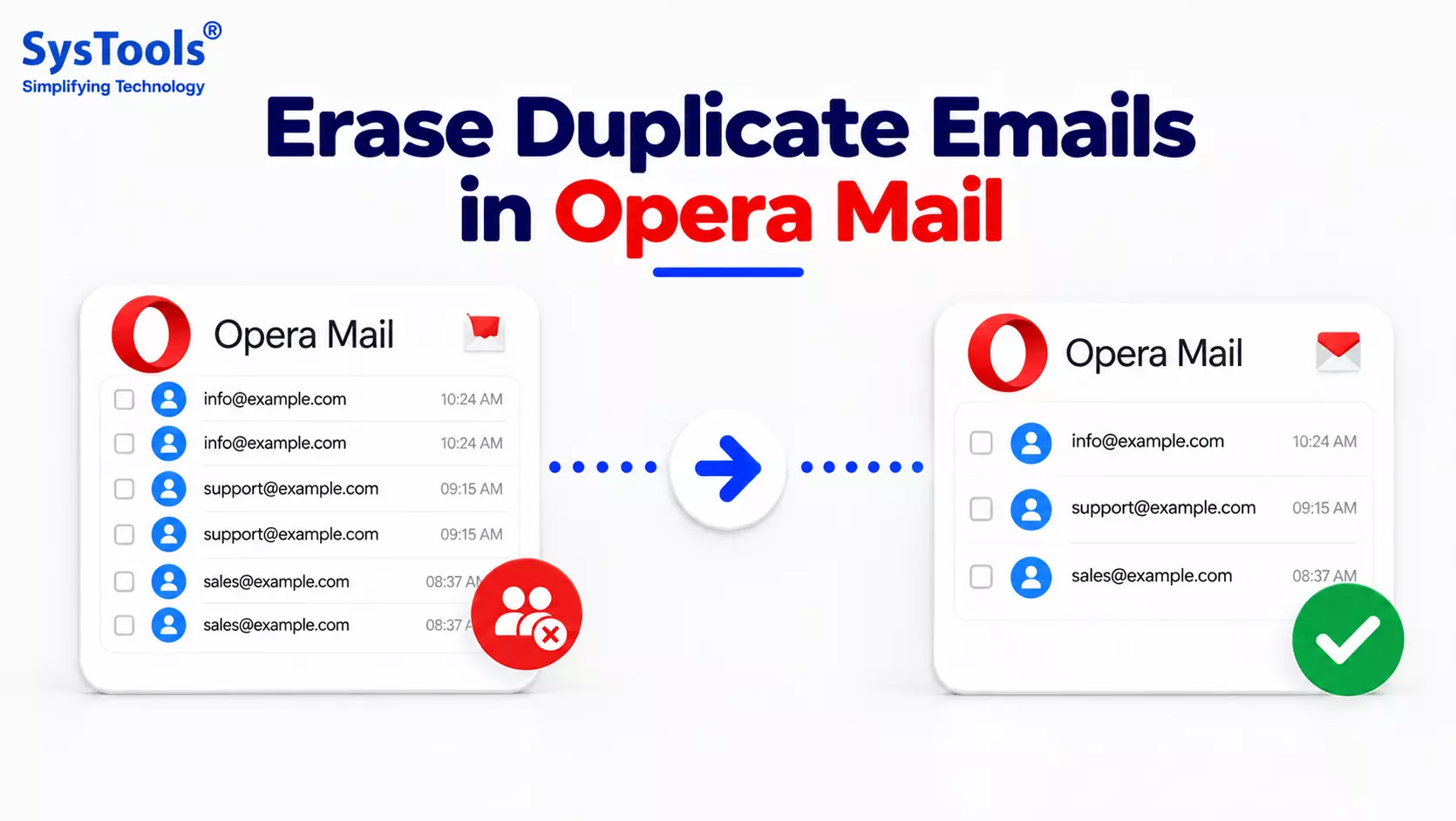
How to Erase Duplicate Emails in Opera Mail - Easy Methods
Duplicate emails in Opera Mail can make your mailbox difficult to manage and consume unnecessary storage space.
The same message may appear multiple times in the Inbox, Sent Items, or other folders because of repeated synchronization, importing mailboxes, or account configuration issues.
If you have only a few duplicate messages, you can remove them manually. However, when Opera Mail contains hundreds or thousands of duplicates, manually checking every message can be time-consuming.
In such cases, an automated Opera Mail duplicate email remover can help identify and remove redundant messages more efficiently.
Why Do Duplicate Emails Appear in Opera Mail?
Before removing duplicate emails, it is useful to understand what causes them. Common reasons include:
- Repeated synchronization with the mail server
- Importing the same mailbox more than once
- Restoring an old Opera Mail profile
- Moving messages between folders repeatedly
- POP3 or IMAP synchronization issues
- Multiple copies of the same mailbox data
- Incorrect account configuration
- Repeated backup or migration operations
Duplicate emails may have the same sender and subject, but sometimes their message IDs, timestamps, or other properties can differ.
Therefore, simply searching by subject may not always be enough to identify every duplicate. One can also use an automted tool to remove duplicate emails from Google Takeout.
Method 1: Manually Delete Duplicate Emails in Opera Mail
If your mailbox contains only a small number of duplicate messages, you can remove them manually.
Step 1: Open Opera Mail
Launch Opera Mail and open the mailbox containing duplicate messages.
Step 2: Find Duplicate Messages
Sort or organize messages based on properties such as:
- Sender
- Subject
- Date
- Message size
Look for messages that appear to be identical.
Step 3: Select Duplicate Emails
Hold the Ctrl key and select the duplicate messages you want to remove.
Step 4: Delete the Selected Messages
Press Delete or use the available delete option.
Step 5: Empty the Trash
After confirming that the correct messages have been deleted, empty the Trash folder if you want to permanently remove them.
Limitation of Manual Removal
Manual deletion can work for a small mailbox, but it becomes difficult when dealing with a large Opera Mail database. Checking every message individually can take significant time and increases the possibility of deleting an important email accidentally.
Method 2: Erase Duplicate Emails in Opera Mail Using SysTools
For a large collection of duplicate Opera Mail messages, an automated approach can make the cleanup process easier.
SysTools MBOX Duplicate Remover can be used to identify duplicate emails stored in MBOX files. Since Opera Mail stores mailbox data in the MBOX format, the mailbox files can be processed to identify redundant messages.
Steps to Remove Duplicate Opera Mail Emails
Step 1: Locate Opera Mail MBOX Files
First, locate the Opera Mail mailbox files containing the emails you want to clean.
Step 2: Launch SysTools MBOX Duplicate Remover
Install and open the SysTools MBOX Duplicate Remover application.
Step 3: Add Opera Mail MBOX Files
Add the required Opera Mail MBOX files or folders to the software.
Step 4: Select Duplicate Criteria
The software can compare messages using multiple email properties, such as:
- To
- From
- Subject
- Date
- Body
- Attachments
Using multiple properties helps identify duplicate messages more accurately than checking only the sender or subject.
Step 5: Scan for Duplicate Emails
Start the scanning process. The software analyzes the selected MBOX data and identifies duplicate messages.
Step 6: Review the Duplicate Emails
Review the detected duplicates before deleting them. This gives you an opportunity to verify which copies should be removed.
Step 7: Remove Duplicate Messages
After reviewing the results, use the available removal options to clean the duplicate emails from the mailbox data.
Read: How to Delete Duplicate Contacts in Outlook Address Book?
Why Use an Automated Method?
When an Opera Mail mailbox contains a large number of duplicate emails, automation offers several practical advantages.
Manual Method
Automated Method
Find duplicates individually
Scan mailbox data automatically
Time-consuming for large mailboxes
Suitable for bulk processing
Manual comparison
Compare multiple email properties
Higher chance of missing duplicates
Systematic duplicate detection
Difficult with multiple MBOX files
Process multiple mailbox files
Best for a few duplicates
Better suited for large datasets
Tips Before Removing Duplicate Opera Mail Emails
Before performing a large-scale cleanup, consider the following precautions:
Create a Backup
Keep a copy of your original Opera Mail MBOX files before deleting duplicate messages.
Review Detected Duplicates
Do not automatically delete every message that appears similar. Verify the detected duplicates before permanently removing them.
Keep Important Emails
Check important folders and messages before performing bulk cleanup.
Clean Multiple Mailboxes Carefully
If you have several Opera Mail MBOX files, identify which files contain the duplicate messages before processing them.
Final Words
Duplicate emails can gradually make an Opera Mail mailbox harder to manage and increase the amount of unnecessary data stored in MBOX files.
For a small number of duplicates, manual deletion can be sufficient. However, manually checking a large Opera Mail mailbox can be tedious and inefficient.
For bulk cleanup, SysTools MBOX Duplicate Remover provides an automated approach for scanning MBOX files and identifying duplicate emails using multiple comparison criteria such as To, From, Subject, Date, Body, and Attachments. This makes it easier to clean large Opera Mail mailboxes without manually checking every message.