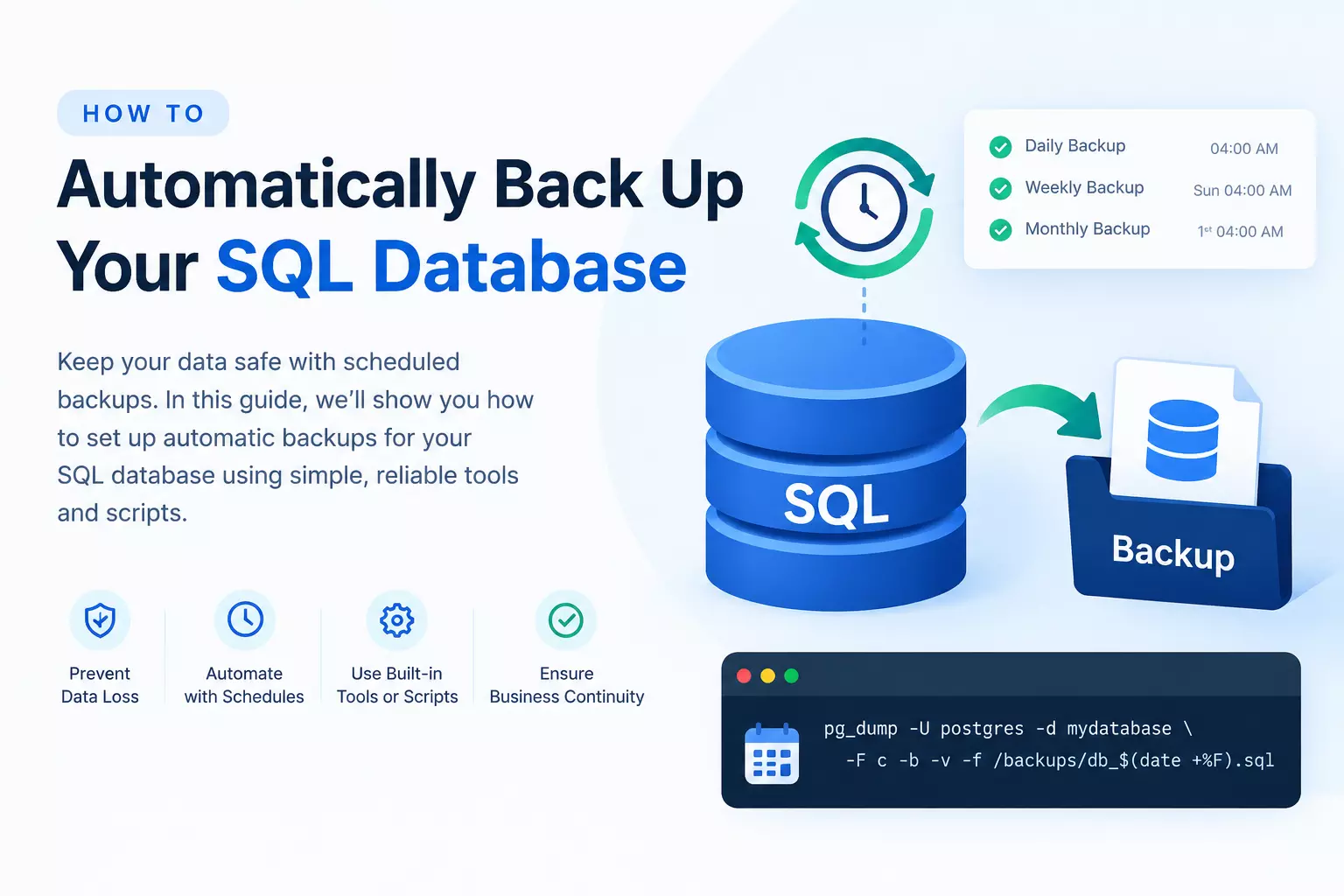
How to Auto Backup SQL Database?
SQL databases often store important business records, customer details, transactions, application data, and other information that may be difficult to recreate.
A database failure, accidental deletion, hardware issue, or other unexpected event can make this data unavailable. Keeping regular backups gives you a separate copy that can be used when recovery is required.
Manually taking a backup may be fine when you need it occasionally, but it becomes difficult when backups are required every day or at regular intervals.
Someone has to remember to start the backup, select the correct database, choose a storage location, and check whether the process completed successfully.
This is where automatic SQL database backup can help. A schedule SQL database backup can run at predefined times without requiring you to start the process every time. It can help maintain regular backup copies and reduce the chance of forgetting an important backup.
How to Auto Backup SQL Database Manually?
You can take an SQL database backup manually through the database management tools available for your database system. The basic process is:
- Open your SQL database management tool.
- Connect to the database server.
- Select the database you want to back up.
- Choose the available backup option.
- Select the destination for the backup.
- Start the backup process.
- Wait for the backup to finish.
- Verify that the backup was created successfully.
The manual method gives you control over each backup, but it requires regular involvement. If you need backups on a fixed schedule, repeating these steps can become time-consuming.
How to Delete Duplicate Contacts in Outlook Address Book?
How to Backup SQL Database Automatically?
Prapl SQL Backup Tool provides a simple way to automate SQL database backups from Windows. Instead of starting each backup manually, you can create a backup task and configure it to run automatically according to your selected schedule.
To get started, create a new backup task, connect your database, select the backup destination, and configure the required schedule. You can set backups to run hourly, daily, weekly, monthly, or on a custom schedule.
Steps to Auto Backup SQL Database with Prapl
- Install and open Prapl SQL Backup Tool.
- Select New Backup.
- Add your SQL database connection details.
- Select the database you want to back up.
- Choose a backup destination such as Local, NAS, S3, FTP, SFTP, Wasabi, Backblaze B2, or MinIO.
- Set the required backup schedule.
- Configure retention to keep the required number of backup copies.
- Save the backup task.
- Prapl will run the backup automatically according to the configured schedule.
- Check the backup history to monitor completed backup jobs.
Why Choose Prapl SQL Backup Tool?
Prapl can be useful when you want to move from a completely manual backup routine to scheduled database backups.
- Automatic scheduling: Run backups hourly, daily, weekly, monthly, or on a custom schedule.
- Multiple storage options: Save backups to local and remote destinations.
- Retention management: Keep a selected number of backup copies and remove older ones according to your settings.
- Compression: Reduce backup file size with built-in compression.
- Encryption: Protect backup data with AES-256 encryption.
- Backup history: Check previous backup jobs and their status.
- Failure notifications: Receive email alerts when a backup fails.
- Background operation: Backup tasks can run without requiring constant manual monitoring.
Conclusion
Automatic SQL database backup can make regular data protection easier and more consistent. While the manual method works for occasional backups, scheduled automation is more suitable when you need backups at fixed intervals.
Prapl SQL Backup Tool provides scheduling, storage management, retention, compression, encryption, and backup monitoring features in one Windows-based application.