Hard Drive/Solid state drive (SSD): Choosing the Right Storage for Speed, Reliability, and Value
If your computer feels sluggish, apps take ages to open, or your game library is bursting at the seams, it’s probably time to rethink storage. The two main options—Hard Drive/Solid state drive (SSD)—solve different problems and shine in different scenarios. This guide breaks down how each works, where they excel, and how to pick the right (or combined) setup for your budget and workflow.
HDD vs. SSD in Plain English
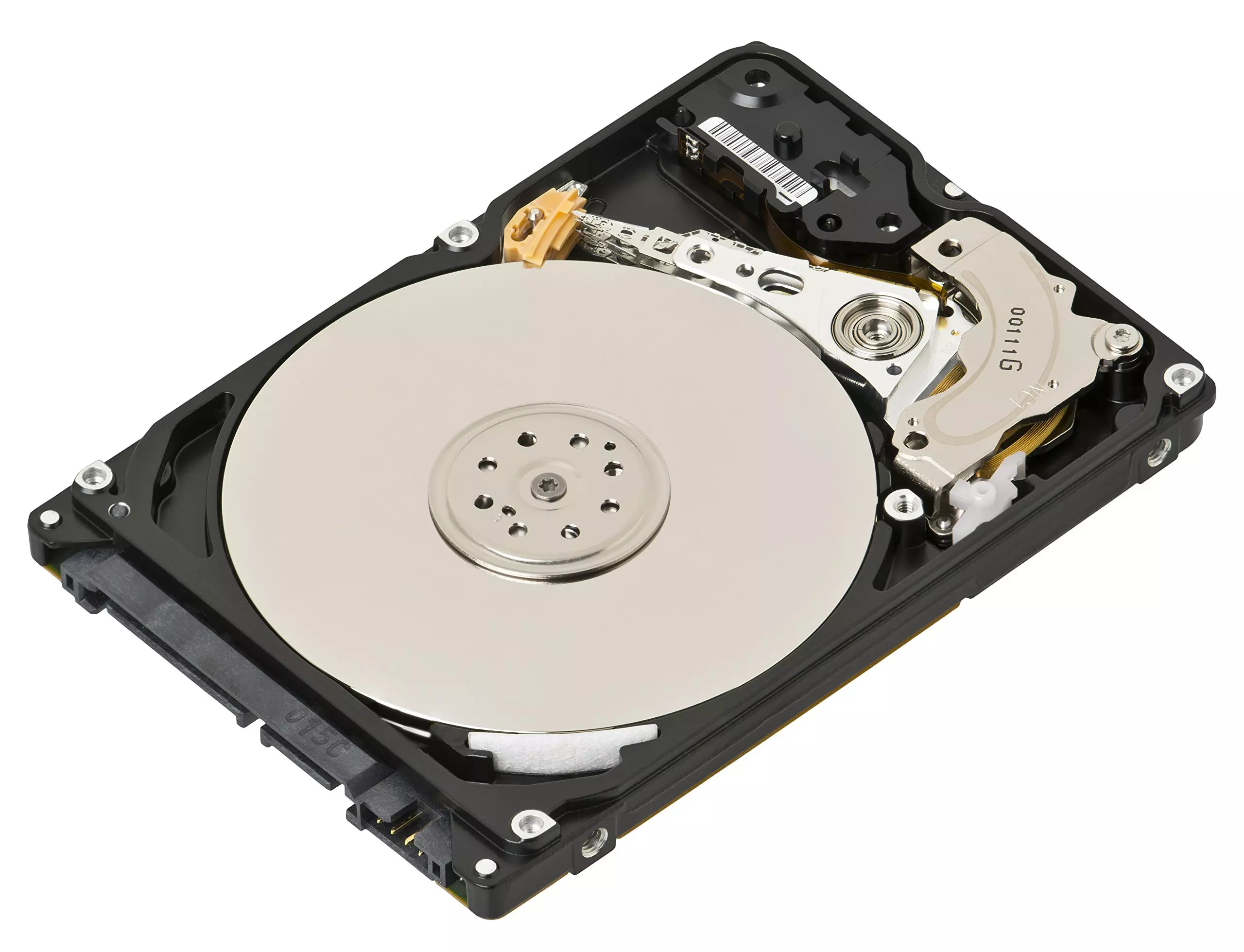
- HDD (Hard Disk Drive): A spinning metal platter with a moving arm that reads and writes data magnetically. Think of a very fast record player. More storage per rupee, but slower and more fragile.
- SSD (Solid-State Drive): No moving parts—just flash memory. Think of a giant, super-fast USB drive. Much faster and more shock-resistant, but typically pricier per gigabyte.
Read: The Ultimate Guide to Choosing the Best Dedicated Server
Speed: The Everyday Game-Changer
Nothing transforms a computer’s “feel” like moving from an HDD to an SSD.
- Boot times: An HDD might take close to a minute; an SSD can slash that to seconds.
- App launches & multitasking: SSDs fetch small files instantly, so browsers, office suites, design tools, and launchers pop open with minimal waiting.
- Large file work: Copying big video files or game installs? An SSD (especially NVMe) can move data many times faster than a typical HDD.
SATA vs. NVMe (M.2)
- SATA SSDs remove the spinning parts and fit into older systems, but they’re capped by the SATA interface.
- NVMe SSDs (M.2) use the PCIe bus for even higher throughput and lower latency—ideal for creators and gamers who constantly move hefty assets.
Durability and Reliability
- HDDs have moving parts. They’re more vulnerable to bumps, drops, and wear. Great for desks and static storage, less great for rough travel.
- SSDs have no moving parts, so they’re quieter and handle knocks better. They do have finite write endurance, but modern drives are engineered to outlast typical consumer workloads by years.
Capacity and Cost
- HDDs win on price per gigabyte. Multi-terabyte HDDs are affordable and make excellent bulk libraries for media, backups, and archives.
- SSDs win on performance. You’ll pay more per gigabyte, but the speed dividend is immediate and obvious in daily use.
Rule of thumb: If you work mostly with documents, spreadsheets, and web apps, a 500GB–1TB SSD may be all you need. If you manage 4K footage, massive RAW catalogs, or huge game libraries, pair a fast SSD with a large HDD.
The Best of Both: Hybrid Strategy
You don’t have to choose one or the other. Many users combine them:
- Primary SSD (OS + apps + active projects): Lightning-fast boots, instant launches, snappier editing timelines.
- Secondary HDD (archives + media + backups): Roomy, economical storage for less frequently accessed data.
This hybrid setup keeps your system responsive while providing a safe, cost-effective home for everything else.
Who Should Pick What?
Students & Everyday Users
- Pick: 500GB–1TB SATA or NVMe SSD.
- Why: Faster boots, instant app opens, and smooth multitasking. Add an external HDD later for photos and videos if needed.
Gamers
- Pick: 1TB–2TB NVMe SSD for current titles; optional 2TB+ HDD for the backlog.
- Why: Games installed on NVMe load maps and textures faster; HDD holds older titles or recordings.
Creators (Photo/Video/Design/Audio)
- Pick: 1TB–2TB NVMe SSD for active projects; 4TB+ HDD for archives and backups.
- Why: NVMe keeps your previews, scrubs, and exports fluid. HDDs keep costs down for long-term storage.
Professionals & Developers
- Pick: 1TB–2TB NVMe SSD for VMs, containers, code, and databases; HDD (or NAS) for snapshots and artifacts.
- Why: Compile times and environment spins are dramatically faster on NVMe.
Small Businesses
- Pick: NVMe SSDs in workstations for responsiveness; RAID-backed HDDs (on-prem or NAS) for shared storage and backups.
- Why: Balance speed for productivity with economical capacity for shared assets.
Upgrade Path: What to Check Before You Buy
Interface & Form Factor
- 2.5" SATA SSD: Works in most desktops and many laptops.
- M.2 NVMe SSD: Needs an M.2 slot that supports NVMe (PCIe). Check your motherboard or laptop manual.
Capacity Sweet Spots
- SSDs often have better performance at 1TB+ due to more parallel flash chips.
Endurance (TBW) & Warranty
- For heavy write workloads (video editing, scratch disks), consider higher TBW ratings and longer warranties.
Firmware & Software
- Vendor tools help with firmware updates, health checks, and secure erase.
Thermals
- NVMe drives can run hot under sustained loads. A simple M.2 heatsink can prevent throttling.
Backup Plan
- Any upgrade is a great time to start (or refresh) a 3-2-1 backup strategy: three copies, two different media, one offsite.
Migrating Without Losing a Beat
- Clone your drive: Many SSD vendors provide free cloning utilities. Connect the SSD (via M.2 slot or USB-to-SATA adapter), clone, then swap.
- Fresh install option: For a squeaky-clean system, back up, install the OS fresh on the SSD, and restore data afterward.
- Align and format correctly: Use GPT/UEFI on modern systems and ensure partitions are aligned (cloning tools usually do this automatically).
- Enable TRIM: Most OSes do this by default, keeping SSDs fast over time.
Performance Tips That Actually Matter
- Keep 10–20% free space on SSDs to maintain performance and longevity.
- Move caches/scratch to SSD for apps like Photoshop, Premiere, or your IDE.
- Store archives on HDD and only pull active projects onto the SSD.
- Update firmware occasionally to benefit from fixes and optimizations.
Common Myths, Debunked
- “SSDs die quickly.” Modern SSDs have excellent endurance for typical users; many will outlast the computer itself.
- “HDDs are useless now.” Not at all. They’re unbeatable for cheap, massive storage and backups.
- “NVMe is always necessary.” NVMe is great, but moving from HDD to any SSD is the biggest leap. SATA SSDs are still fantastic value.
A Quick Buyer’s Checklist
- Confirm SATA vs. NVMe support on your device
- Choose capacity based on current use + 2-year growth
- Check TBW, warranty, and vendor software
- Consider a heatsink for NVMe drives
- Plan your migration and backup before opening the case
Read: Top Computer Accessories to Boost Your IT Hardware
Final Word: Make Storage Work for You
You don’t need to be a hardware expert to pick the right drive. If your goal is a dramatically faster, quieter, and more reliable everyday experience, start with an SSD. If you juggle huge media libraries or maintain deep archives, add a high-capacity HDD. And if you want the best of both worlds, run a smart hybrid: SSD for what you use today, HDD for what you’ll need tomorrow.
For curated advice and a range of drives across budgets and form factors, you can explore options from Tecisoft, where knowledgeable guidance meets practical, business-ready solutions.