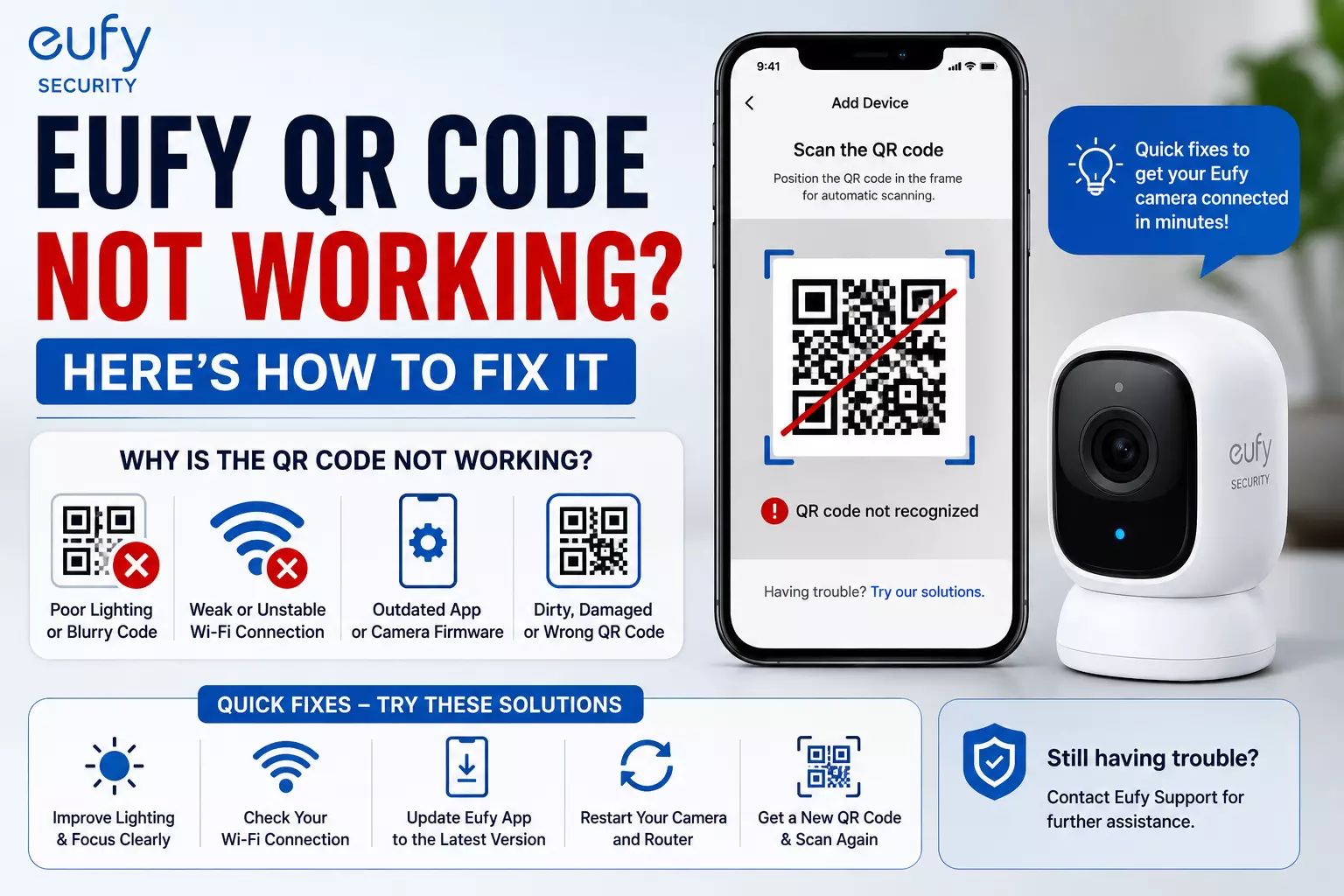
Eufy QR Code Not Working? Here's How to Fix It
If your Eufy QR Code Not Working issue appears during setup, check your phone brightness, camera distance, Wi-Fi connection and QR code visibility. Restart the camera and try generating a new QR code if needed.
Setting up your Eufy camera should be quick. But sometimes the QR code just won't scan. It can be annoying, especially when you want your camera working right away.
If you're facing the Eufy QR Code Not Working problem, don't worry. In most cases, it's easy to fix. This guide elucidates why it happens and the simple steps you can take to solve it.
You'll also learn how Eufy Camera login, eufy login, Wi-Fi and app settings can affect the setup process. Whether you're setting up a new camera or reconnecting an old one, this guide will help.
When Does the Eufy QR Code Stop Working?
The problem usually appears during the first setup. You may also face it after resetting your camera or changing your Wi-Fi network. Some common situations include:
- Setting up a brand-new Eufy camera.
- Resetting the camera to factory settings.
- Switching to a new Wi-Fi network.
- Using a different phone for setup.
Completing Eufy Camera login but the QR code still won't scan.
What Is the Problem and Why Does It Happen?
What Happens
Why It Happens
Camera won't scan the QR code
Phone brightness is too low
QR code looks blurry
Screen protector or cracked display
Camera keeps saying scan failed
Camera is too close or too far
Setup gets stuck
Weak Wi-Fi connection
QR code doesn't appear
eufy login session expired
Camera disconnects during setup
App or firmware needs an update
Read: Best Cheap Action Camera with 4K Video – Affordable &
How to Fix Eufy QR Code Not Working?
1. Increase Your Phone Brightness
The camera reads the QR code from your phone screen. Turn your screen brightness to 100%. Avoid dark mode during setup.
2. Hold the Phone at the Right Distance
Keep the phone around 5 to 8 inches from the camera lens. Move it slowly until the camera scans the code. Don't shake the phone.
3. Clean the Camera Lens
Dust or fingerprints can stop the camera from reading the QR code. Use a soft microfiber cloth. Avoid using water or harsh cleaners.
4. Check Your Wi-Fi Network
Most Eufy security cameras only support 2.4 GHz Wi-Fi during setup. If your phone is connected to 5 GHz, switch to 2.4 GHz. Make sure the internet is stable.
5. Log Out and Sign In Again
Sometimes the QR code isn't generated correctly because of a login issue. Sign out from the app. Complete your Eufy Camera login again using your eufy login account. Then create a new QR code.
6. Update the Eufy Security App
An outdated app may cause setup problems. Open the Play Store or App Store. Install the newest version. Then restart the setup.
7. Restart Your Camera
Turn the camera off. Wait for about 30 seconds. Turn it back on and reiterate the pairing process. This simple step often fixes temporary issues.
8. Reset the Camera
If nothing works, perform a factory reset. Press and hold the reset switch for around 10 seconds. Wait until the camera announces that it has been reset. Now complete the setup again.
Why Is My Eufy Camera Not Scanning the QR Code?
If your camera isn't scanning, the issue is usually related to one of these:
- Low screen brightness.
- Dirty camera lens.
- Wrong phone distance.
- Weak Wi-Fi.
- Expired eufy login session.
- Outdated firmware.
- Damaged phone display.
Most users resolve the problem within a few minutes by checking these basic things.
How Can You Circumvent This Problem Next Time?
You Can Do
Benefit
Keep the app updated
Fewer setup errors
Use 2.4 GHz Wi-Fi
Better camera compatibility
Clean the lens regularly
Faster QR code scanning
Keep phone brightness high
Easier QR code detection
Stay logged into your account
Smooth Eufy Camera login process
Update camera firmware
Better performance and security
Does Eufy Login Affect QR Code Setup?
Yes, it can. If your eufy login session expires or the app doesn't sync correctly, the QR code may fail during setup. Simply sign out and complete the Eufy Camera login again. Then restart the installation. This refreshes your account connection and often solves the issue.
What If the QR Code Still Doesn't Work?
If you've tried the whole thing and the camera still won't scan:
- Test setup using another phone.
- Reinstall the Eufy Security app.
- Restart your Wi-Fi router.
- Check if your camera firmware is supported.
- Contact Eufy customer support if the hardware may be faulty.
If your QR code never appears, there may be an account or device issue that needs official support.
FAQs
1. Why is my Eufy camera not reading the QR code?
The most common reasons are low phone brightness, incorrect scanning distance, a dirty camera lens, weak Wi-Fi or an expired eufy login session. Adjust these settings first before resetting the camera.
2. Does Eufy only work with 2.4 GHz Wi-Fi?
Yes. Most Eufy security cameras require a 2.4 GHz Wi-Fi network during setup. If your phone is connected to a 5 GHz network, the pairing process may fail and prevent the QR code from working properly.
3. Do I need to reset my Eufy camera if the QR code won't scan?
Not always. Try increasing screen brightness, cleaning the camera lens, updating the app and signing into your Eufy Camera login account again. Reset the camera only if the basic fixes don't solve the issue.
4. Why does the Eufy app keep asking me to scan the QR code again?
This usually happens when the first scan fails or the camera loses connection during setup. A stable Wi-Fi connection, the latest app version and a fresh eufy login session usually fix the repeated scanning issue.
5. Can I set up my Eufy camera without scanning the QR code?
Most Eufy cameras require QR code scanning during the initial setup because it securely transfers your Wi-Fi details to the device. If scanning keeps failing, resetting the camera and generating a new QR code is the best option.
Final Thoughts
The Eufy QR Code Not Working issue is usually caused by simple setup problems. In most cases, increasing screen brightness, cleaning the camera lens, reconnecting to the correct Wi-Fi network or refreshing your Eufy Camera login will solve it.
If the issue continues after trying every step, reset the camera and create a fresh eufy login session before contacting support.
Following these tips will help you complete the setup faster and keep your Eufy security camera, smart home security system, camera pairing process, QR code scanning issue, wireless security camera setup and home surveillance camera working smoothly.