Cudy Router Login: Complete Guide to Access Your Router Admin Panel
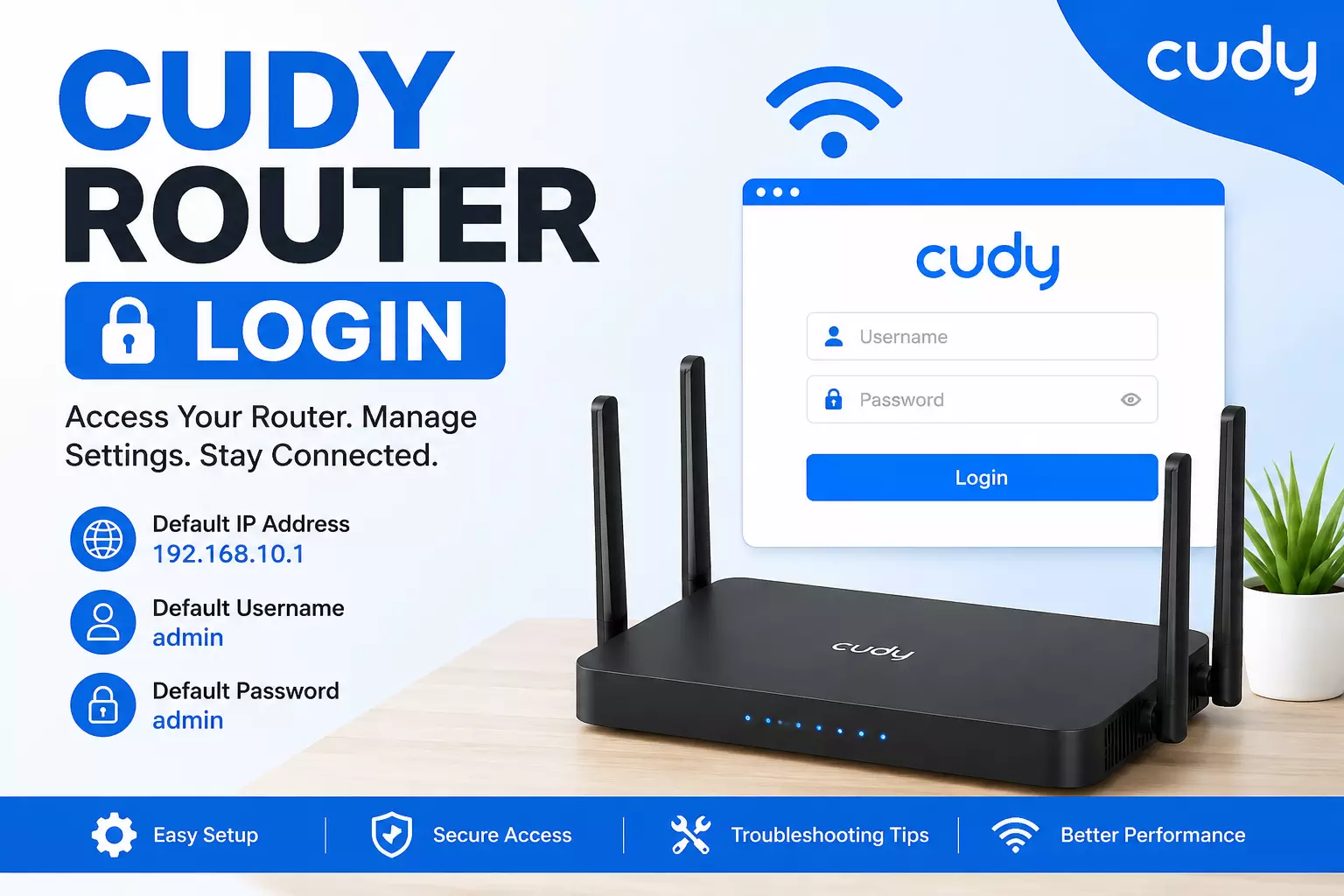
Cudy Router Login is the process of accessing your router's admin panel through a web browser. Simply connect to your router, open 192.168.10.1 or cudy.net and log in using your admin username and password.
Need to change your WiFi password? Want to update your network settings? You first need to complete the Cudy Router Login process.
The good news is that it only takes a few minutes. Just follow a few simple steps and you can access your router settings without any trouble.
In this guide, you'll learn everything about Cudy Login, how to access the admin panel, common login issues and what to do if your Cudy router blinking blue light doesn't stop.
What is Cudy Router Login?
Cudy Router Login is the process of signing in to your router's admin dashboard. This dashboard lets you manage your home or office network.
After logging in, you can:
- Change your WiFi password
- Rename your WiFi network (SSID)
- Update the router firmware
- Set up parental controls
- Create a guest network
- Improve WiFi security
- Restart or reset your router
- Manage connected devices
Most users access the router through cudy.net or the default IP address 192.168.10.1.
When Should You Do Cudy Router Login and Why?
When
Why
Setting up a new router
Complete the first-time setup.
Forgot WiFi password
Change the wireless password.
Slow internet
Check network settings and restart the router.
Router firmware update
Install the latest security updates.
Adding a new device
Manage connected devices easily.
Network security issues
Update login credentials and security settings.
Changing ISP settings
Configure WAN or internet settings.
How to Do Cudy Router Login?
Follow these easy steps.
Step 1: Connect to the Router
Connect your device to the Cudy router. You can use:
- WiFi
- Ethernet cable
A wired connection is more stable during setup.
Step 2: Open a Browser
- Open Chrome, Edge, Safari or Firefox.
Step 3: Enter the Login Address
- Type one of these into the address bar:
- 192.168.10.1
- cudy.net
- Press Enter.
Step 4: Enter Login Details
- Enter your admin username and password. If you're using the router for the first time, use the authorizations printed on the router label or in the user manual.
Step 5: Access the Admin Panel
- Click Login. You are now inside the router dashboard. From here, you can manage all your router settings.
Why Can't You Access Cudy Router Login?
Sometimes the login page doesn't open. Don't worry. Here are the most common details.
Check Your Connection
- Make sure your device is associated to the Cudy router.
Verify the Login Address
Many users type the wrong IP address.
Use:
- 192.168.10.1
- cudy.net
Check Admin Permits
- If you've changed the password before, use the updated one. Forgot it? You'll need to reset the router.
Restart the Router
- A simple reboot often fixes temporary problems.
Clear Browser Cache
- Old browser data can stop the login page from loading.
- Try another browser if needed.
How to Fix Cudy Router Blinking Blue?
If your Cudy router blinking blue light keeps flashing, it usually means the router is trying to establish a connection or is in setup mode.
Try these fixes:
- Wait for 2–3 minutes after powering on.
- Check the internet cable.
- Restart the router.
- Restart the modem.
- Update the router firmware.
- Perform a factory reset if nothing works.
If the blue light continues for a long time, contact your internet provider or Cudy support.
Is It Safe to Access Cudy Router Login and Helpful Tips
Is It Safe?
Helpful Tips
Yes, if you use your own router.
Change the default admin password swiftly.
Yes, when connected to your home network.
Enable WPA2 or WPA3 WiFi security.
Yes, if firmware is updated regularly.
Keep your router firmware updated.
Yes, if you log out after making changes.
Avoid sharing your admin password.
Yes, with a strong password.
Use a unique and secure WiFi password.
Frequently Asked Questions
1. What is the default Cudy Router Login address?
The default Cudy Router Login address is usually 192.168.10.1 or cudy.net. Make sure your device is connected to the router before opening the login page. If it still doesn't open, restart the router and try again.
2. What should I do if I forgot my Cudy Login password?
If you've forgotten your Cudy Login password, you'll need to reset the router. Press and hold the reset switch for around 10 seconds. After the reset, use the default login identifications provided on the router label.
3. Why is my Cudy router blinking blue continuously?
A Cudy router blinking blue light usually means the router is trying to connect to the internet or complete the setup process. Check the WAN cable, restart the modem, update the firmware or reset the router if the issue continues.
4. Can I change my WiFi password after Cudy Router Login?
Yes. After completing Cudy Router Login, go to the wireless settings page. There, you can easily change your WiFi name and password. Save the settings and reconnect all your devices using the new password.
5. Why is the Cudy Login page not opening?
The Cudy Login page may not open if you're not connected to the router, the IP address is incorrect or browser cache is causing issues. Try using 192.168.10.1, clear your browser cache, restart the router and test another browser.
Final Thoughts
Cudy Router Login is modest once you know the exact steps. Whether you want to alter your WiFi password, recover security, update firmware or fix network problems, the router admin panel gives you complete control.
If you face login problems or notice your Cudy router blinking blue, follow the troubleshooting tips above. Keeping your router updated, using strong passwords and checking your settings regularly will help your network stay secure and run smoothly.